How to Tell if a Website Is Down for Everyone or Just You
You click a link and get a blank page. Or worse, an error message filled with technical jargon. Your first thought: the website must be down. But here's the thing — about 70% of th
You click a link and get a blank page. Or worse, an error message filled with technical jargon. Your first thought: the website must be down. But here's the thing — about 70% of the time when you can't reach a website, the problem is on your end, not theirs. Maybe your router needs a restart. Maybe your browser cached a broken version of the page. Maybe your company's firewall just decided that website looks suspicious.
Figuring out whether a website is actually down or if it's just a problem with your connection saves you from waiting hours for a fix that'll never come from their end. More importantly, knowing where the problem lies tells you exactly what to fix. This guide walks you through every diagnostic step, from simple browser tricks to command-line tools that show you exactly where your connection breaks down.
Why Does a Website Suddenly Stop Working?
When you can't reach a website, the failure happens at one of two points: either on the client side (that's you — your device, browser, or network) or on the server side (the website's hosting infrastructure). Understanding this split is crucial because each type of problem requires completely different solutions.
Client-side problems include everything from your browser storing an outdated version of the page to your ISP having routing issues. These problems affect only you or a small group of users. You can usually fix them yourself in minutes once you know what to look for.
Common culprits include browser cache corruption, DNS resolution failures, firewall blocks, or local network congestion.
Server-side problems mean the website itself is experiencing issues — their servers crashed, they're under a DDoS attack, or they're performing maintenance. These affect everyone trying to access the site. There's nothing you can do except wait for their technical team to fix it. The key is knowing which type of problem you're dealing with before you waste time troubleshooting the wrong thing.
What Are the First, Quickest Steps to Check?
Start with the three-step rule that resolves most perceived website outages in under a minute. These steps systematically eliminate the most common client-side issues without any technical knowledge required.
Step one: perform a hard refresh. Press Ctrl+F5 on Windows or Cmd+Shift+R on Mac. This forces your browser to ignore its stored copy of the page and fetch a fresh version directly from the server. Regular refreshing (F5 alone) often just reloads the broken cached version, which is why this stronger refresh matters. If the site loads after a hard refresh, you've just discovered your browser was holding onto corrupted data.
Step two: open an incognito or private browsing window and try loading the site there. This creates a clean browser environment without your extensions, stored cookies, or cached data. If the site works in incognito but not in your regular browser, you've isolated the problem to either a problematic browser extension or corrupted site data. Chrome extensions that modify page content or aggressive ad blockers are frequent culprits.
Step three: switch browsers entirely. If you normally use Chrome, try Firefox or Safari. Each browser handles web technologies slightly differently, and occasionally a site will break in one browser due to a compatibility issue or a browser-specific bug. If the site loads fine in a different browser, you know the website itself is operational.
After these browser-level checks, test with a different device on the same network. Grab your phone (while connected to the same Wi‑Fi, not cellular data) and try loading the site. If your phone can access it but your computer can't, the problem is specific to your computer — perhaps firewall software, corrupted network settings, or malware.
These simple steps diagnose over half of all "website down" complaints without touching a single advanced setting. They work because they systematically isolate variables: first the browser cache, then browser extensions and cookies, then the browser itself, and finally the device. Each test narrows down where the fault lies.
How Do 'Down for Everyone' Checkers Actually Work?
Services like IsDownAlarm operate a network of monitoring servers distributed across different continents and internet providers. When you check if a website is down, these services don't just ping the site once from their office — they simultaneously test from dozens of locations worldwide. This geographic distribution is what makes their results reliable.
Here's what happens when you enter a URL: each monitoring server attempts to establish a connection with the target website, just like your browser would. They're looking for three things. First, can they establish a TCP connection to the server? Second, does the server return a valid HTTP response code (like 200 OK)? Third, how long does this whole process take?
The checkers also verify SSL certificates for HTTPS sites and measure response times from each location. A site might be technically "up" but responding so slowly (say, 30 seconds per page load) that it's effectively unusable. Good monitoring services catch these performance issues too.
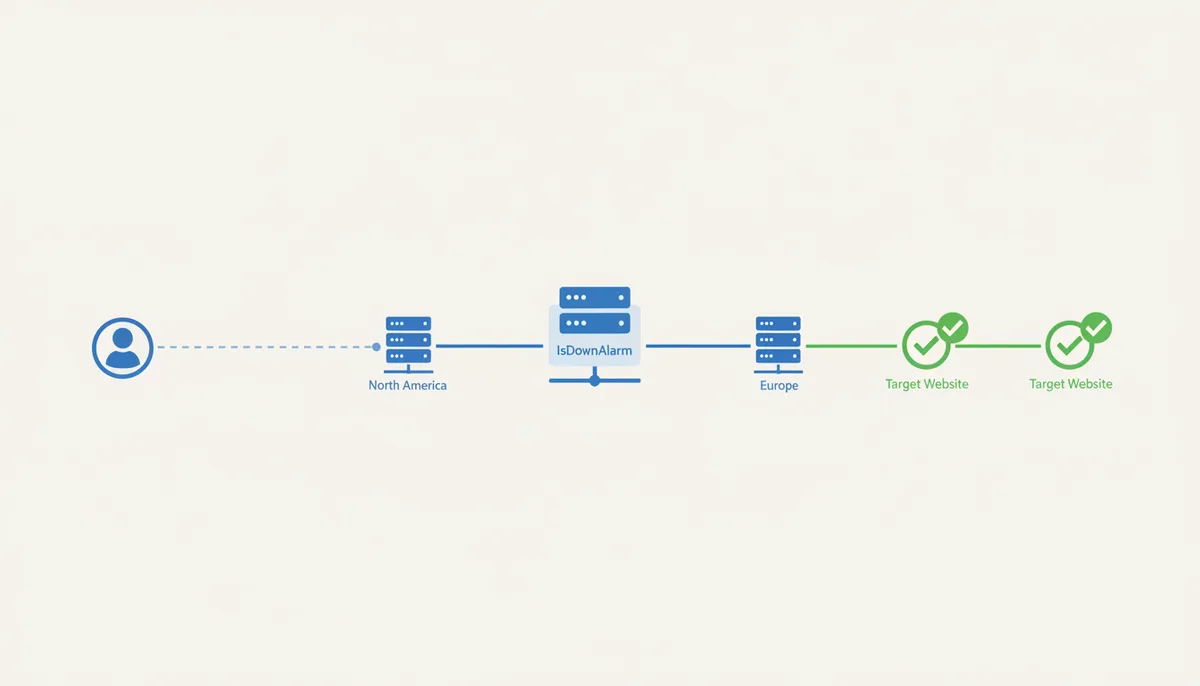
When the checker reports "It's down for everyone," multiple geographically distributed servers have failed to connect. This confirms a server-side issue — the website is genuinely offline or experiencing severe problems. You can stop troubleshooting your end and check the company's social media or status page for updates.
When it reports "It's just you," the monitoring servers successfully connected from multiple locations. This means the website is operational, but something in your specific path to the server is failing. The problem could be your device, your home network, your ISP, or any network node between you and the website.
Understanding this mechanism helps you trust the results. The checker isn't guessing — it's providing empirical data from actual connection attempts across diverse network paths. If ten servers in different countries can reach a website but you can't, the statistical probability points strongly to a local issue.
How Can I Test if My Own Network Is the Problem?
Network issues are the second most common cause of website access problems after browser cache. Here's a systematic approach to diagnose whether your internet connection is the culprit.
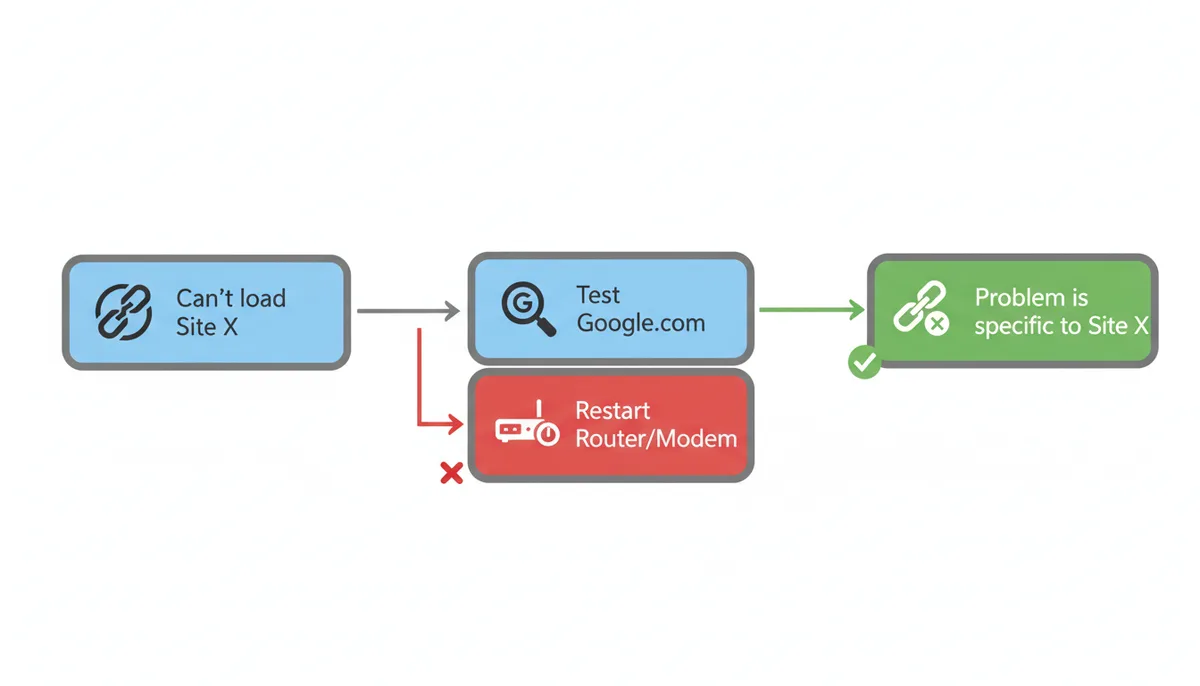
First, try loading several unrelated websites. Pick major sites that rarely go down: google.com, wikipedia.org, or bbc.com. If none of these load, your internet connection has failed entirely. If they all load except your target site, your internet works fine but there's a specific issue reaching that one website — perhaps a routing problem or DNS failure.
When you've confirmed a network issue, restart your equipment properly. Don't just turn the router off and on. Unplug both your modem and router from power. Wait a full 30 seconds — this allows capacitors to discharge and clears the device memory completely. Plug in your modem first and wait for all its lights to stabilize (usually 1-2 minutes). Then plug in your router and wait for it to fully boot. This process clears temporary network errors and forces fresh connections to your ISP.
Your smartphone provides an excellent alternative network for testing. Turn off Wi‑Fi completely so your phone uses cellular data, then try accessing the problematic website. If it loads over cellular but not your home internet, you've proven the issue lies with your home network or ISP, not with your devices or the website itself.
For intermittent issues, monitor pattern. Does the site fail only during certain hours? This often indicates ISP network congestion during peak times. Does it fail only for specific types of content (like videos or large images)? Your ISP might be throttling certain traffic types. Document these patterns — they're valuable when reporting issues to your ISP.
If other devices on your network can access the site, the problem is isolated to one device. Check that device's firewall settings, antivirus software, and network adapter settings. Windows Firewall, in particular, can sometimes block specific websites after a security update.
What Advanced Commands Can Pinpoint the Failure?
Command-line tools provide precise information about where and why a connection fails. These tools come built into every operating system and give you the same diagnostic data network engineers use.
The ping command tests basic connectivity. Open Command Prompt (Windows) or Terminal (Mac/Linux) and type ping example.com. You'll see one of three results. Success looks like "Reply from 93.184.216.34: bytes=32 time=88ms TTL=52" — this means your computer can reach the server. "Request timed out" means your data packets aren't reaching the destination or aren't coming back. "Ping request could not find host" means your computer can't even translate the domain name to an IP address, indicating a DNS problem.
Understanding ping results requires knowing that some servers deliberately ignore ping requests for security reasons. If ping fails but the website loads in a browser, the server is just ignoring pings. But if both fail, you have a real connectivity issue.
The traceroute command (spelled tracert on Windows) maps the entire path your data takes to reach a website. Maps the entire path your data takes to reach a website and shows every "hop" between you and the destination. Each line represents a router or server your data passes through, with response times for each.
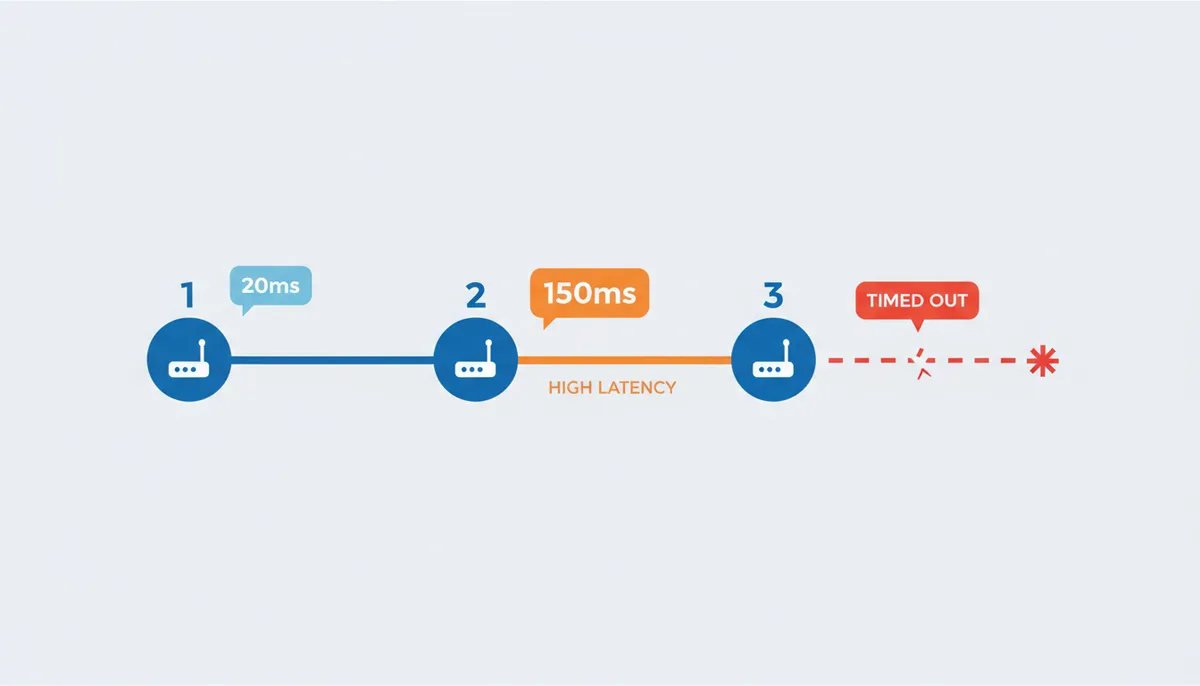
Reading traceroute results tells you exactly where connections break. If you see responses for the first five hops then suddenly timeouts (shown as * * *), the failure point is between hop 5 and 6. If the trace completes but with high times (over 200ms) at certain hops, you've found network congestion. Failures in the first 2-3 hops indicate problems in your home network or ISP. Failures near the end suggest issues closer to the destination server.
The nslookup command diagnoses DNS problems — when your computer can't translate a website name into an IP address. Type nslookup example.com to see if your default DNS server can resolve the name. If it fails, try nslookup example.com 8.8.8.8 to test against Google's public DNS. If the second command works but the first doesn't, your ISP's DNS servers have failed.
These commands provide actionable data. When calling your ISP, saying "traceroute shows failures at hop 7, which is your router at 10.20.30.40" gets you past first-level support. When reporting issues to a website, including ping times and the full traceroute output helps their engineers understand if the problem is on their end or with a network provider between you and them.
What Do Common Error Messages and HTTP Codes Mean?
Error messages fall into two categories: those generated by your browser when it can't reach a site, and those sent by the web server itself. Recognizing the difference immediately tells you where to focus your troubleshooting.
Browser-generated errors appear when your browser fails to establish any connection. "This site can't be reached" means your browser tried and failed to connect to the server — check your internet connection and firewall. "DNS_PROBE_FINISHED_NXDOMAIN" means the domain name doesn't exist in DNS records, either because you mistyped it or their domain registration expired. "ERR_CONNECTION_TIMED_OUT" indicates your browser gave up waiting for a response, suggesting network congestion or a server that's online but overwhelmed.
Server-generated errors come as HTTP status codes when your browser successfully connects but something goes wrong on their end. The first digit tells you the category: 4xx codes mean client errors (your request was invalid), while 5xx codes indicate server errors (their system failed).
The 5xx errors directly answer whether a site is down. A 500 Internal Server Error means their code crashed while processing your request — it's definitely them, not you. A 502 Bad Gateway occurs when a frontend server can't reach the backend server it needs, often during partial outages. A 503 Service Unavailable usually means intentional downtime for maintenance or emergency overload protection. A 504 Gateway Timeout happens when servers in their infrastructure stop talking to each other.
| Code | Name | Simple Meaning | Who's at Fault? |
|---|---|---|---|
| 404 | Not Found | The specific page doesn't exist | Client (wrong URL) |
| 500 | Internal Server Error | Website code crashed | Server |
| 502 | Bad Gateway | Frontend can't reach backend | Server |
| 503 | Service Unavailable | Server overloaded or in maintenance | Server |
| 504 | Gateway Timeout | Servers timed out talking to each other | Server |
Context matters for interpreting these codes. A 404 on one page doesn't mean the site is down — you might have an outdated bookmark. But 500-series errors on the homepage indicate real server problems. If you get different error codes refreshing the same page, their infrastructure is likely failing in complex ways, with different servers giving different responses.
Which Diagnostic Method Should I Use and When?
Different situations call for different diagnostic approaches. Here's a practical framework based on your technical comfort level and what information you need.
For beginners or when you need a quick answer, start with an online checker like IsDownAlarm. In literally seconds, you'll know if the problem affects everyone or just you. This immediate classification saves time — if it's down for everyone, you can stop troubleshooting and wait. If it's just you, proceed to local fixes.
Intermediate users should add network-level diagnostics when the online checker says "it's just you." Restart your network equipment first — this fixes transient routing issues and DHCP conflicts. Then test on cellular data to isolate whether the problem is your home network or something broader. These steps require no technical knowledge but provide valuable isolation of the issue.
Advanced users and IT professionals need the specific data that command-line tools provide. Use ping to test basic reachability — it's fast and gives you hard numbers for packet loss and response times. Run traceroute when you need to identify exactly where in the network path things break down, especially useful for ISP issues. Deploy nslookup when you suspect DNS problems, particularly if some sites work but others don't.
| Method | When to Use It | Skill Level Required | What It Diagnoses |
|---|---|---|---|
| Online Checker | First step for any outage | Beginner | Server-side vs client-side issues |
| Hard Refresh | Page looks broken or outdated | Beginner | Browser cache problems |
| Network Restart | Multiple sites failing | Intermediate | Router/modem issues |
| Ping | Need response time data | Advanced | Basic connectivity and latency |
| Traceroute | Identify failure point | Advanced | Network path problems |
Choose your method based on what you need to achieve. Quick verification? Use the online checker. Fixing your own access? Try the intermediate steps. Reporting to IT support? Gather command-line output. Each tool serves a purpose, and using the right one saves time.
What if a Site Is Blocked or Only Partially Loading?
Sometimes websites fail in peculiar ways — the page loads but looks completely broken, or you can access the homepage but not login pages. These partial failures often point to specific types of blocking or infrastructure issues.
When a site loads but appears broken (missing images, no styling, jumbled layout), you're likely experiencing a CDN (Content Delivery Network) failure. Modern websites serve their HTML from one server but load images, stylesheets, and JavaScript from CDN servers. If the main server works but the CDN fails, you get a skeleton page. Check your browser's developer console (F12) for failed resource loads from domains like cloudflare.com or akamai.net. This confirms a CDN issue — nothing you can fix, but at least you know the main site is trying to work.
Regional blocking creates confusion because the site works fine for people in other countries. Governments mandate ISP-level blocking for political or legal reasons. Companies geo-block to comply with licensing agreements or sanctions. Your computer shows no errors because technically everything works — the block happens cleanly at the network level. A VPN provides the definitive test: if the site loads when your VPN places you in another country, you've confirmed geographic blocking.
Security software causes subtle failures. Unlike your firewall completely blocking a site (which gives clear errors), antivirus programs might block only certain page elements they consider suspicious. You'll get a partially functional site missing key features. The test is straightforward but requires caution: temporarily disable your antivirus and try again. If the site suddenly works perfectly, you've found your culprit. Add the site to your antivirus whitelist rather than leaving protection disabled.
ISP-level filtering happens through transparent proxies that inspect and sometimes modify your web traffic. These might block specific keywords, file types, or protocols. If a site works over VPN or mobile data but not your regular connection, and other people with the same ISP report similar issues, you're dealing with ISP filtering. Some ISPs offer "unfiltered" plans or allow you to opt out of filtering through account settings.
Browser security policies can create weird partial failures. If your company manages your browser through group policy, it might block certain JavaScript features or enforce strict security headers. Sites relying on those features break in unexpected ways. The telltale sign: the site works in a personal browser on the same computer but fails in your company-managed browser.
What Happens During Major Outages at Big Tech Companies?
When major platforms go dark or large cloud providers fail, the failure patterns tell you exactly what type of problem occurred. Understanding these patterns helps you recognize similar issues at smaller scale and know when to stop refreshing and just wait.
BGP (Border Gateway Protocol) failures create total unreachability. BGP acts as the internet's routing system — it tells networks how to find each other. When a company accidentally withdraws or misconfigures their BGP routes, they essentially remove themselves from the internet's map. The symptoms are distinctive: DNS lookups fail completely, ping returns "No route to host," and the outage affects all of the company's services globally. Recovery takes hours because BGP updates propagate slowly through the internet's core routers, which cache routing information for stability.
CDN failures create a different pattern. Major websites rely on Content Delivery Networks to serve static content from servers close to users. When a CDN provider experiences an outage, seemingly unrelated sites fail simultaneously with 503 Service Unavailable errors. The actual origin servers might be perfectly healthy, but they're unreachable because the CDN layer that normally shields them has failed. These outages typically resolve within 30-90 minutes once identified, as CDN providers can reroute traffic or bring backup systems online relatively quickly.
Database failures produce partial functionality. You might browse a site normally but get errors when trying to log in, post content, or access personalized features. This happens when web servers work fine but can't retrieve or store user data. During high-traffic events, sites often shed database load by disabling features — the site stays up but functionality degrades. Static content loads from cache servers while anything requiring database queries fails with generic error messages.
Certificate expiration creates particularly confusing outages. Your browser shows security warnings claiming the site is unsafe, but the site's infrastructure works perfectly. SSL certificates have hard expiration dates, and when they expire, browsers refuse to establish secure connections. These outages often occur at midnight UTC when certificates expire. The fix is simple — installing a renewed certificate — but someone has to notice the problem first. Once fixed, the site returns to normal within minutes as the new certificate propagates.
Cascading failures are the most complex. One component fails and takes down seemingly unrelated services in a domino effect. A storage service outage might break authentication systems, which breaks monitoring dashboards, which prevents engineers from diagnosing the original problem. During these incidents, you'll see random features across random websites failing in patterns that seem impossible. Recovery times vary wildly because engineers must carefully restore services in the correct order to avoid making things worse.
Learning these patterns helps you set realistic expectations. BGP failures mean waiting hours, not minutes. CDN issues usually clear up within an hour. Certificate problems fix almost instantly once someone uploads a new certificate. Database issues depend on whether data corruption occurred — read-only recovery might take an hour while full restoration could take days. When you recognize these patterns in the wild, you know whether to check back in five minutes or come back tomorrow.
FAQ
If a website is down for everyone, how long does it usually take to come back up?
Recovery time depends entirely on what caused the outage. A simple server restart takes 2-5 minutes. Fixing a bad code deployment might take 15-30 minutes if they can just roll back to a previous version. But hardware failures require physical replacement and restoration from backups, often taking 2-6 hours. Major incidents like ransomware attacks or data center flooding can cause multi-day outages. Watch the company's official status page or Twitter account — they usually provide time estimates once they understand the scope of the problem.
Can a website be down for just one country?
Yes, country-specific outages happen regularly for several reasons. Government censorship is the obvious one — countries block social media platforms or news sites they deem problematic. But technical causes are equally common. CDN providers run separate infrastructure in different regions, and a failure in one region's CDN nodes makes sites inaccessible there while working fine elsewhere. Submarine cable cuts can isolate entire countries from certain internet routes. Even routine maintenance on regional data centers can make sites temporarily unavailable in specific geographic areas.
Does using a VPN help if a site is down?
A VPN only helps in specific scenarios where the problem exists between you and the website but not at the website itself. If your ISP blocks the site, routes traffic poorly, or if you're hitting geographic restrictions, a VPN provides an alternate path that might work. But if the website's servers have crashed, are overloaded, or are offline for maintenance, no VPN will help — the destination simply isn't available regardless of how you try to reach it. VPNs solve routing and access problems, not destination availability problems.
Why do different 'is it down' websites sometimes give different results?
Each monitoring service uses different infrastructure and criteria. One service might have servers in 20 locations while another has only 5, leading to different geographic coverage. They might define "down" differently — one counts any response over 5 seconds as a failure while another waits 30 seconds. Some check only the homepage while others test multiple pages. Most significantly, timing matters: if a site experiences a brief 30-second outage, one checker might catch it while another misses it entirely. Check multiple services if you need high confidence, but any reputable service gives you a reliable general answer.
My ISP says my internet is fine, but I still can't access certain sites. What's next?
ISP support typically only confirms your connection to their network works, not your ability to reach specific sites. Start by changing your DNS servers — your ISP's DNS might be failing or filtering. Switch to Cloudflare (1.1.1.1 and 1.0.0.1) or Google (8.8.8.8 and 8.8.4.4) DNS in your network settings. If sites suddenly work, you've confirmed a DNS issue. If not, run a traceroute to the problematic sites and look for where the timeouts start. If they occur within your ISP's network (you'll see their domain names in the hop descriptions), call back with this specific evidence. If failures happen beyond your ISP's network, the problem lies with internet backbone providers neither you nor your ISP controls.
Could my antivirus or firewall be blocking a website?
Security software frequently blocks legitimate websites through false positives or outdated threat databases. Modern antivirus programs inspect encrypted HTTPS traffic, which can break sites using newer security protocols. Your firewall might block based on keywords, file types, or behavioral patterns. The diagnostic test is simple: temporarily disable your security software and immediately try the site again. If it works, re-enable your protection and add the site to your security software's whitelist or exceptions. Check if your antivirus has different protection levels — sometimes switching from "maximum" to "balanced" protection solves overcautious blocking while maintaining reasonable security.
Sources
- IETF (Internet Engineering Task Force) — The definitions and technical specifications for HTTP status codes (e.g., 4xx and 5xx series) mentioned in the section 'What Do Common Error Messages and HTTP Codes Mean?'.
- ICANN (Internet Corporation for Assigned Names and Numbers) — The foundational concepts of the Domain Name System (DNS), which is relevant to the `nslookup` command and diagnosing DNS-related connection failures.
- Cloudflare Learning Center — Authoritative explanations of core internet concepts like DNS, CDN, latency, and the `traceroute` command, backing claims across multiple sections.
- MDN Web Docs by Mozilla — User-friendly yet technically accurate descriptions of HTTP status codes, providing a reliable reference for the error code section.
- Google Public DNS — Information on what a public DNS resolver is, how it works, and instructions for use, supporting the recommendation to switch DNS providers as a troubleshooting step.