Website Down or Internet Problem: A Step-by-Step Check Before You Escalate
Why Does a Website Seem Down When Your Internet Is Working? You're scrolling through news sites, checking email, watching videos—everything works fine. Then you try to reach that o
Why Does a Website Seem Down When Your Internet Is Working?
You're scrolling through news sites, checking email, watching videos—everything works fine. Then you try to reach that one specific website you need, and nothing. Blank page. Error message. Spinning wheel of death. Your internet clearly works, so the website must be broken, right?
Not necessarily. Between your browser and that website's server lies a complex chain of connections, configurations, and potential failure points. A problem anywhere along this path will make the site appear "down" to you, even when millions of other users can access it perfectly.
This confusion wastes everyone's time. You might call your ISP about a website's server crash. You might tweet at a company about their "broken" site when the real problem is your router's DNS cache. You might wait hours for a site to "come back up" when a simple browser setting would fix it instantly.
The systematic approach you'll learn here moves from the inside out—starting with quick checks on your own device and expanding outward to the broader internet. Each step either solves the problem or narrows down exactly where the failure lies. By the end, you'll know with certainty whether to clear your browser cache, call your ISP, or simply wait for the website's team to fix their servers.
How Does Your Computer Actually Reach a Website?
When you type a web address and hit enter, your request doesn't teleport directly to the website. It travels through multiple systems, each of which must work correctly for the page to load.
First, your browser asks your operating system to connect. Your OS sends the request to your router, which forwards it to your ISP. Your ISP's DNS resolver translates the website's name (like example.com) into an IP address (like 93.184.216.34). The request then travels across the internet, often bouncing through a Content Delivery Network (CDN) like Cloudflare or Akamai before reaching the actual server. The server processes your request and sends data back along the same path in reverse.
A failure at any point breaks the entire chain. Your browser might have corrupted data. Your router might have lost its configuration. Your ISP's DNS server might be down. The website's CDN might be experiencing an outage in your region. The origin server itself might be overloaded or offline. Each type of failure produces different symptoms and requires different fixes.
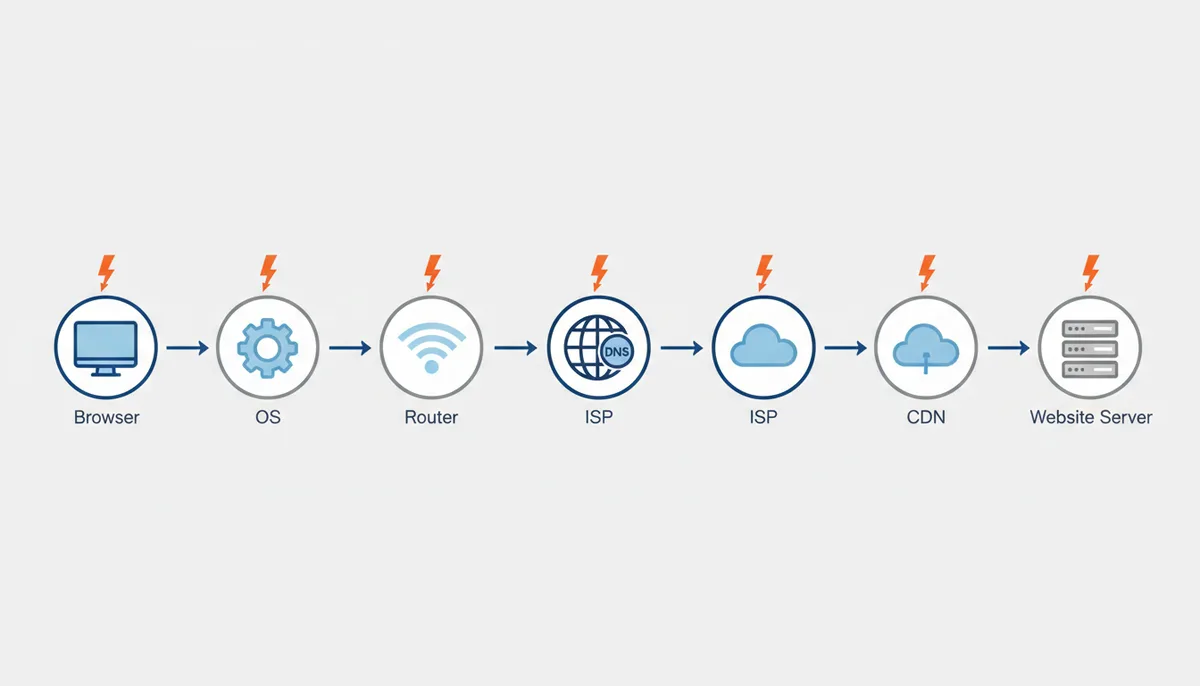
Understanding this path transforms troubleshooting from guesswork into logic. You'll test each link in the chain systematically, starting with the components you control directly.
Step 1: Could the Problem Be in Your Browser?
Your browser stores massive amounts of data about every site you visit—cached files, cookies, authentication tokens, saved passwords, and browsing history. When this data becomes corrupted or outdated, it can prevent sites from loading correctly, even when your internet connection works perfectly.
Start with the fastest diagnostic: open a private or incognito window and try the website again. Private browsing bypasses most stored data and disables extensions, creating a clean testing environment. If the site loads in private mode but not in your regular browser, you've found the problem.
To fix browser-based issues, clear your cache and cookies for the affected site. In Chrome, press Ctrl+Shift+Delete (Cmd+Shift+Delete on Mac), select "Cached images and files" and "Cookies and other site data," choose your time range, and clear. Firefox and Edge use similar shortcuts. If you only want to clear data for the specific problem site, most browsers let you right-click the padlock icon in the address bar and access site-specific settings.
Browser extensions cause surprising problems. Ad blockers, privacy tools, and security extensions can break sites by blocking essential scripts or modifying requests. Disable all extensions temporarily to test. If the site works, re-enable extensions one by one until you identify the culprit.
Sometimes the browser itself is the issue. Chrome might fail where Firefox succeeds, or vice versa. Keep a second browser installed specifically for these situations. If the site works in Browser B but not Browser A, you can either troubleshoot Browser A further or simply use Browser B for that site.
Step 2: Is Your Device or Local Network the Culprit?
The quickest way to determine if you have a general internet problem: try to reach Google.com, YouTube.com, and Amazon.com. These sites have such robust infrastructure that they essentially never go down simultaneously. If you can't reach any of them, your internet connection—not the original website—needs attention.
Next, isolate device-specific problems. Grab your phone, tablet, or another computer connected to the same Wi-Fi network. Try accessing the problem website from this second device. If it loads successfully, the issue exists only on your original device—perhaps a firewall rule, corrupted network settings, or malware.
When did you last restart your computer? A simple reboot clears temporary network states, renews IP addresses, and resets misbehaving network services. Windows updates often require a restart to properly configure network components. On Mac, clearing the DNS cache (which happens during restart) solves many site-specific loading issues.
Your router and modem need attention too. Unplug your router's power cable, wait 30 seconds, and plug it back in. Do the same with your modem if it's a separate device. This process clears the router's memory, forces it to re-establish its connection to your ISP, and often resolves mysterious connectivity issues. Consumer-grade routers can develop memory leaks or corrupted routing tables after running continuously for months.
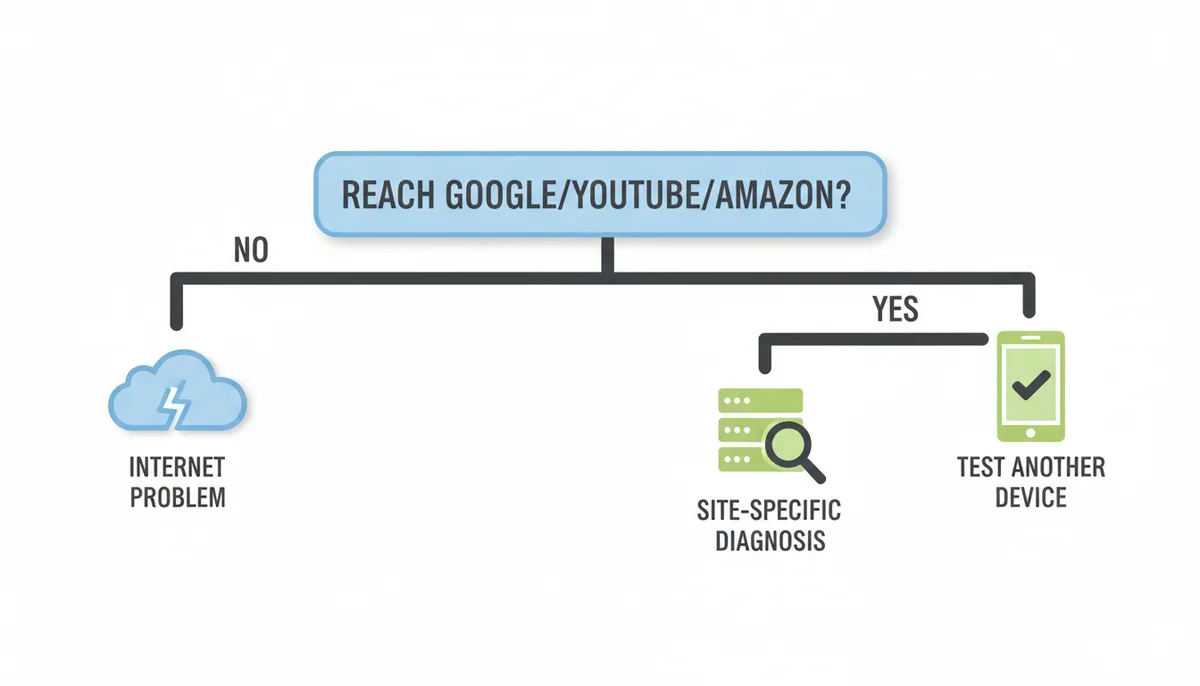
Check if other devices on your network experience the same problem. If every device fails to reach the website, but can reach other sites, you're likely dealing with an ISP routing issue or a problem between your ISP and the specific website.
Step 3: How Do You Use Command-Line Tools to Get a Clearer Answer?
Command-line network tools provide precise information about where connections fail. These utilities come pre-installed on every major operating system and give you concrete data to work with instead of vague error messages.
The ping command tests basic connectivity. Open Command Prompt (Windows) or Terminal (Mac/Linux) and type ping example.com (replacing with your problem site). Ping sends small data packets to the server and measures if and how quickly they return. Response times under 100ms indicate good connectivity. "Request timed out" means your packets aren't reaching the server or its responses aren't reaching you. "Destination host unreachable" typically indicates a local network problem.
Traceroute (or tracert on Windows) maps your connection's entire path. Type traceroute example.com and watch as it shows every "hop" your data takes. Each line represents a router or network device. The tool shows three response times per hop—multiple high numbers or asterisks indicate congestion or failure at that point. If traceroute fails consistently at hop 3 or 4, the problem lies within your ISP's network. Failures near the end suggest issues with the destination server or its immediate network.
Nslookup specifically tests DNS resolution. Type nslookup example.com to see if the domain name translates to an IP address. A successful lookup shows the server's IP address. "Non-existent domain" or timeout errors indicate DNS problems—either with your configured DNS servers or with the domain itself.
| Tool | What It Tests | When to Use It | Example of a 'Good' Result | Example of a 'Bad' Result |
|---|---|---|---|---|
| ping | Basic connectivity and response time | First test for any connection issue | Reply from 93.184.216.34: bytes=32 time=47ms | Request timed out. |
| traceroute/tracert | Complete network path to destination | When ping fails or to find where delays occur | Each hop shows times under 150ms | Multiple * * * lines or high times at specific hops |
| nslookup | DNS name resolution | When you suspect DNS issues | Non-authoritative answer: Address: 93.184.216.34 | *** Can't find example.com: Non-existent domain |
These tools transform vague problems into specific diagnoses. Save the output when you find issues—ISP support teams understand traceroute results far better than "the website won't load."
What Do Common Browser and Server Errors Actually Mean?
Error messages contain valuable diagnostic information once you decode them. Browser errors and HTTP status codes tell you exactly where the problem lies—you just need to understand their language.
DNS errors appear as "This site can't be reached" or "Server DNS address could not be found." These mean your computer can't translate the website's name into an IP address. Either your DNS servers have failed, the website's DNS records are misconfigured, or you've mistyped the address.
Connection errors like "ERR_CONNECTION_TIMED_OUT" or "ERR_CONNECTION_REFUSED" indicate network-level failures. Timeout errors mean your request never received a response—the server might be down, overloaded, or your connection might be blocked. Refused connections mean something actively rejected your attempt, often a firewall or the server being offline.
HTTP status codes starting with 4 indicate client-side issues. A 404 means the specific page doesn't exist, though the server works fine. A 403 means the server understood your request but won't fulfill it—you lack permission. These errors mean the website's infrastructure works, but there's a problem with your specific request.
The 5xx series indicates server-side failures. A 500 Internal Server Error means the server encountered an unexpected condition. A 502 Bad Gateway indicates problems between servers (often between a CDN and origin server). A 503 Service Unavailable explicitly states the server cannot handle requests right now, usually due to maintenance or overload. When you see 5xx errors, the website is definitely experiencing problems.
| Error Message / Code | What It Really Means | Likely Cause (Your End vs. Server End) | Your Next Step |
|---|---|---|---|
| DNS_PROBE_FINISHED_NXDOMAIN | Domain name doesn't exist in DNS | Usually your end (DNS settings) or mistyped URL | Check spelling, try different DNS servers |
| ERR_CONNECTION_TIMED_OUT | No response received within time limit | Could be either—network issue or server down | Run traceroute to identify where connection fails |
| 403 Forbidden | Server understood but refuses to authorize | Server end—access control or geo-blocking | Check if you need login, or try from different location/VPN |
| 503 Service Unavailable | Server temporarily unable to handle requests | Server end—maintenance or overload | Wait and retry, check website's status page |
| ERR_SSL_PROTOCOL_ERROR | Secure connection couldn't be established | Usually your end—clock wrong or outdated browser | Check system date/time, update browser |
Understanding these errors eliminates guesswork. A 503 error means waiting or checking the company's Twitter for updates, not troubleshooting your router.
Could You Be Blocked by a Firewall, Region Lock, or Your ISP?
Sometimes a website works perfectly, but something between you and it actively blocks your connection. These blocks can happen at multiple levels, each requiring different solutions.
Personal firewalls and security software can block specific sites. Windows Defender, antivirus suites, and parental control software maintain blocklists that might include legitimate sites. Check your security software's settings for website blocking features. Temporarily disable the firewall (only as a test) to see if it's responsible.
Corporate and educational networks often block categories of websites—social media, streaming services, or gaming sites. If the site works on your phone's cellular data but not on office Wi-Fi, network-level blocking is likely. These blocks are intentional and can only be bypassed by network administrators or by using alternative connections.
Geographic blocking affects streaming services, news sites, and some e-commerce platforms. The website checks your IP address location and refuses connections from certain countries. Similarly, some governments mandate ISP-level blocking of specific websites. The site remains fully functional—you're just not allowed to access it from your location.
VPNs (Virtual Private Networks) route your connection through servers in other locations, bypassing both geographic restrictions and many ISP-level blocks. Choose a VPN server in a different country and try accessing the site again. If it works through VPN but not directly, you've confirmed location-based blocking.
DNS-based blocking is common but easily circumvented. Your ISP might block sites by returning false DNS results. Switching to public DNS servers bypasses this. On Windows, go to Network Settings > Change adapter options > right-click your connection > Properties > Internet Protocol Version 4 > Properties. Change DNS servers to 1.1.1.1 and 1.0.0.1 (Cloudflare) or 8.8.8.8 and 8.8.4.4 (Google). Mac users can change DNS in System Preferences > Network > Advanced > DNS.
How Do You Get a Final, Definitive Answer?
After working through local diagnostics, you need an objective, external perspective. The key question: is this website down for everyone, or just you?
Third-party checking services like IsDownAlarm.com test websites from multiple geographic locations using different internet providers. These services attempt to connect to the website from their distributed network of servers, providing consensus data about the site's actual status. If multiple checking locations can't reach the site, it's definitely experiencing widespread problems.
The logic is straightforward: if you've eliminated browser issues (it fails in multiple browsers), device issues (it fails on multiple devices), and local network issues (other sites work fine), then either the website has problems or something specific to your ISP's routing is broken.
When a checking service confirms the site is up for others but down for you, you have strong evidence of an ISP-specific problem. Contact your ISP's technical support with your traceroute results showing where the connection fails. Explain that third-party services can reach the site successfully, indicating the problem lies within their network or their peering arrangements.
When the service confirms the site is down for everyone, check the company's official status page or social media accounts for acknowledgment and estimated resolution times. Major services often post updates on Twitter when experiencing outages. There's nothing you can fix in this scenario—the problem requires action from the website's technical team.
For critical services you depend on, consider setting up monitoring that alerts you to outages before you waste time troubleshooting. Knowing immediately that a service is down for everyone saves the entire diagnostic process.
What Actually Happens When ISP Routing Breaks (And Why It's So Hard to Fix)
ISP routing problems create some of the most frustrating connectivity issues because they're completely outside your control yet affect only specific websites. Understanding how these failures occur helps you recognize them quickly and communicate effectively with support.
The internet doesn't have a single path between any two points. Your ISP maintains routing tables—massive databases that determine the best path for data to reach different networks. These tables update constantly as network conditions change. Sometimes these updates go wrong. Your ISP might lose its direct connection to a major network like AWS or Cloudflare. Instead of failing gracefully, the routing table might direct traffic through a backup path that's overloaded, misconfigured, or even circular.
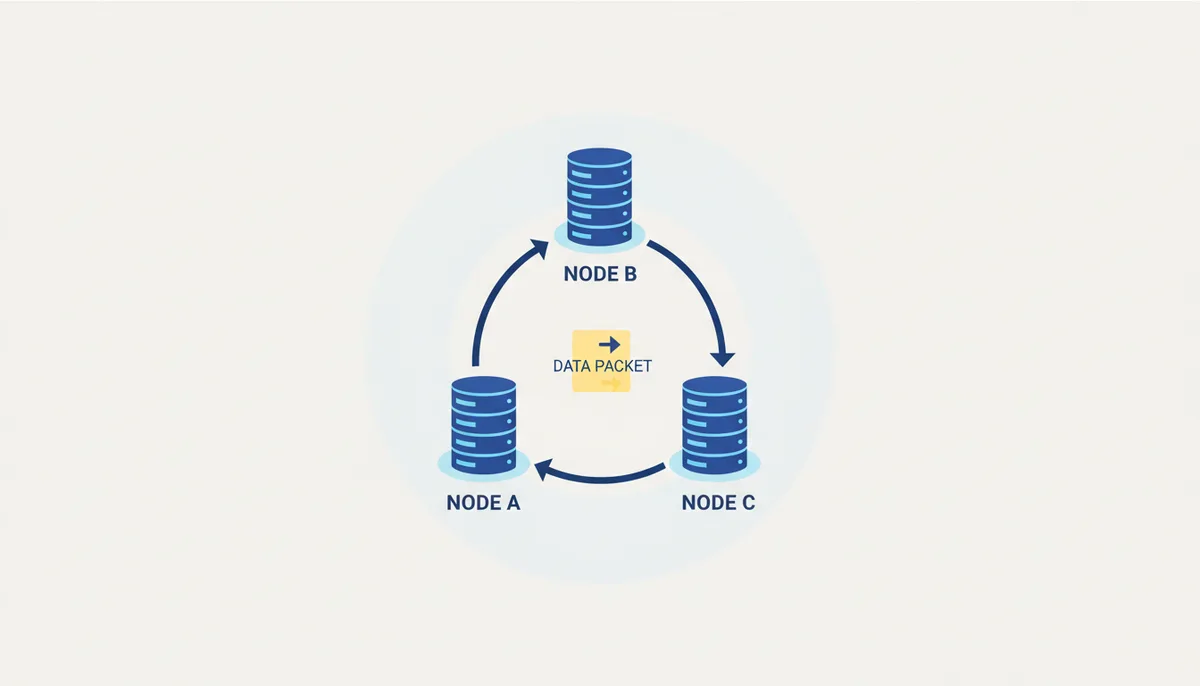
Here's what a routing loop looks like in practice: Your request reaches your ISP's router A, which sends it to router B. Router B's table says to send it back to router A. Your data packet bounces between them until its time-to-live (TTL) expires. On traceroute, you'll see the same IP addresses repeating every few hops, or you'll see the latency numbers climbing dramatically as packets take increasingly bizarre paths.
BGP (Border Gateway Protocol) mishaps cause widespread but selective outages. In 2019, a small ISP in Pennsylvania accidentally advertised that it was the best path to reach Amazon's servers. ISPs across the country believed this false advertisement and started routing Amazon traffic through this tiny network that couldn't handle the load. Amazon worked fine for customers whose ISPs ignored or didn't receive the bad routing update, while others couldn't reach it at all.
Your ISP's peering agreements add another layer of complexity. ISPs connect to each other at internet exchange points, but these connections aren't equal. If your small regional ISP has a dispute with a major backbone provider, they might disconnect their direct link. Your traffic must then find alternative routes, potentially adding dozens of milliseconds of latency or failing entirely for certain destinations.
When you suspect ISP routing issues, collect specific evidence. Run traceroutes to the affected site every 15 minutes for an hour, saving each result. Look for patterns: routes that change dramatically, latency that spikes at specific hops, or paths that seem geographically nonsensical (like going from New York to Los Angeles via London). This data proves the problem isn't simple congestion but actual routing instability.
ISP support often struggles with routing issues because first-level technicians typically handle simple connectivity problems. When you call, immediately ask to escalate to network operations. Use specific terms: "asymmetric routing," "BGP route instability," or "peering issue." Provide your traceroute evidence showing exactly where the routing breaks down. Without this technical detail, you'll waste time with basic troubleshooting scripts.
The Hidden Ways CDNs Complicate Troubleshooting
Content Delivery Networks (CDNs) make websites faster by serving content from servers geographically close to you. This optimization, however, creates unique failure modes that masquerade as general website outages when they're actually highly localized problems.
When you visit a major website, you rarely connect to their actual servers. Instead, your DNS request gets answered by the CDN, which returns the IP address of its nearest edge server. "Nearest" involves complex calculations including geographic distance, network latency, server load, and even your ISP's specific agreements with the CDN provider. This means you and your neighbor might connect to entirely different servers for the same website.
CDN failures create bizarre symptoms. The website might load perfectly but without images, because the HTML comes from one CDN node while images come from another that's experiencing problems. You might access the homepage fine but get errors on specific pages whose content is cached on different servers. The mobile app might work while the website fails, as they often use different CDN configurations.
Consider this hypothetical scenario: A CDN's regional data center in Dallas experiences a partial outage. Users in Texas, Oklahoma, and Arkansas who get routed there based on geography encounter errors. The main website servers are fine, the rest of the CDN's global network is fine, but this regional node is failing. Down-detector services checking from New York, London, and Tokyo all report the site as functional. Local users flood social media with complaints while the website's engineers see normal traffic from most of their users and struggle to identify the problem.
Testing CDN-related issues requires specific techniques. First, identify which CDN the site uses by checking DNS responses: dig example.com often reveals CNAME records pointing to cloudflare.com, akamaized.net, or cloudfront.net. Next, force your connection through different paths using a VPN, but choose servers in different regions, not just different countries. If the site works via a VPN to California but not to Texas, you've confirmed a regional CDN issue.
The command nslookup example.com 8.8.8.8 versus nslookup example.com 1.1.1.1 might return different IP addresses, as CDNs sometimes give different answers to different DNS resolvers. This technique can sometimes route you around a failing CDN node by getting an answer that points to a different edge server.
When reporting CDN issues, specificity matters. "Your website is down" wastes everyone's time. "Your website returns 504 Gateway Timeout errors for users in the Dallas area, traceroute shows the connection dying at Cloudflare's edge, and the issue disappears when accessing through VPN servers outside Texas" immediately tells engineers where to look. Include the Ray ID or CF-Ray header if visible in your browser's developer tools—this unique identifier tells the CDN provider exactly which of their servers handled your request.
Frequently Asked Questions
The website is up for everyone else, but I've tried everything on your list. What now?
This points to a highly specific issue. It could be your ISP having a routing problem to that specific site, or a misconfiguration in your router's firewall. Your traceroute results provide the key evidence here—if the trace dies within your ISP's network (typically hops 2-6), that's strong evidence of an ISP routing problem. Contact your ISP's technical support with these traceroute results. If traceroute completes but the site still won't load, check for unusual router settings like port blocking or packet filtering that might affect only certain sites.
Why does a website work on my phone's cellular data but not on my Wi-Fi?
This almost certainly means the problem is with your local network or Internet Service Provider. Your phone using cellular data takes a completely different path to reach the website—different ISP, different DNS servers, different routing. Start by restarting both your router and modem. If that doesn't work, the issue likely lies with your ISP's DNS servers or routing tables. Try changing your router's DNS settings to public servers like 1.1.1.1 or 8.8.8.8.
Can a virus or malware make a single website unreachable?
Yes. Some malware modifies your computer's hosts file (located at C:\Windows\System32\drivers\etc\hosts on Windows or /etc/hosts on Mac/Linux) to redirect or block specific websites. Malware often blocks security and antivirus company websites to prevent you from downloading removal tools. Check your hosts file for any entries related to the blocked site. Additionally, malware can install proxy settings that route your traffic through malicious servers, potentially blocking certain sites. Run a full system scan with updated antivirus software and consider using specialized tools like Malwarebytes.
Is it possible for a website to be down only for a specific country or region?
Absolutely. Regional outages happen frequently due to CDN node failures, regional internet backbone issues, or intentional geo-blocking. Major websites serve different regions from different data centers. If the European data center fails while the US servers run normally, European users see an outage while Americans access the site without problems. Some countries also mandate ISP-level blocking of certain websites. Using a VPN to connect through a different country often confirms whether you're experiencing regional blocking or regional technical failures.
My traceroute fails before reaching the end, but the website is up. Why?
Many network devices along the internet's path are configured not to respond to traceroute requests for security reasons. Network administrators often disable ICMP responses on their routers to prevent network mapping by potential attackers. Seeing several "* * *" hops in the middle of your traceroute is completely normal as long as subsequent hops show responses and you eventually see hops near the destination. Focus on consistent failures—if traceroute always dies at hop 7 and never progresses further, that indicates a real problem at that network point.
What's the difference between restarting my router and my modem?
The modem connects your home to your ISP's network—it modulates and demodulates the signal on your cable, DSL, or fiber line. The router creates your local network, assigns IP addresses to your devices, and manages Wi-Fi. In many modern setups, these are combined into one device. Restarting the modem forces it to re-establish its connection with your ISP, getting fresh configuration data and potentially fixing authentication issues. Restarting the router clears its routing table, DHCP assignments, and any corrupted memory states. When troubleshooting, restart both—modem first, wait for it to fully connect (all lights stable), then restart the router.
Conclusion
Website connectivity problems feel frustrating precisely because the failure point remains hidden. You see only the result—a blank page or error message—without knowing whether to blame your browser, your ISP, or the website itself.
The systematic approach you've learned transforms this guessing game into a logical process. Start with browser checks that take seconds. Expand to device and network tests that take minutes. Use command-line tools to gather specific evidence. Interpret error messages to understand which side bears responsibility. Check for blocking or regional issues. Finally, verify your findings against external monitoring services.
Each step either fixes the problem or eliminates a possibility. By the end, you know exactly where the failure lies and who can fix it. No more calling your ISP about YouTube's server problems. No more waiting for sites to "come back up" when clearing your DNS cache would restore access immediately.
Keep this diagnostic process handy. Bookmark it, print it, or save it offline. The next time a website fails to load while your internet seems fine, you'll solve the mystery methodically instead of guessing randomly. The few minutes invested in proper diagnosis save hours of misdirected troubleshooting and get you back online faster.
Sources
- Cloudflare Learning Center — Definitions and explanations of DNS, CDN, traceroute, and general network infrastructure.
- MDN Web Docs — Authoritative definitions for HTTP status codes (e.g., 404, 500, 503) and what they indicate.
- Internet Engineering Task Force (IETF) — The primary standards for protocols mentioned, such as RFC 2616 (HTTP/1.1) and RFC 1034/1035 (DNS), backing the fundamental technical principles.
- ICANN (Internet Corporation for Assigned Names and Numbers) — The organization governing the Domain Name System, providing authority for any claims about how domain names work at a global level.