What to Do in the First Five Minutes After a Downtime Alert
Your phone screams. A red banner flashes on your laptop. It’s a P1 alert. Your stomach drops. For the next sixty seconds, your brain is a chaotic mess of adrenaline and worst-case
Your phone screams. A red banner flashes on your laptop. It’s a P1 alert. Your stomach drops. For the next sixty seconds, your brain is a chaotic mess of adrenaline and worst-case scenarios. This is the moment that separates a controlled response from a full-blown crisis. Your next five moves matter more than the next five hours. Here’s what to do.
Minute 0: Acknowledge the Alert and Start the Clock
Your first action isn’t troubleshooting; it’s administrative. Find the ‘Acknowledge’ button in PagerDuty, Opsgenie, or whatever tool sent the alert, and click it. This does three critical things: it stops the alert from escalating to someone else who might also be waking up, it signals to everyone that someone owns the problem, and it officially starts the clock on your incident response time.
This click forces a psychological shift. You’re moving from a state of panic to a state of process. You are now executing a plan, not guessing. Immediately after acknowledging, create a single source of truth for communication. If your company uses Slack or Teams, create a new channel right now. Name it something clear and consistent, like #incident-2024-05-28-checkout-down. Invite the on-call team and any other essential engineers. This channel is now the war room. All discussion, logs, and updates go here—nowhere else.
Minute 1: Is It Real? The 3-Point Verification Check
Most alerts are real, but some are ghosts. Your job is to know the difference before you wake up half the engineering team. Run through this three-point check.
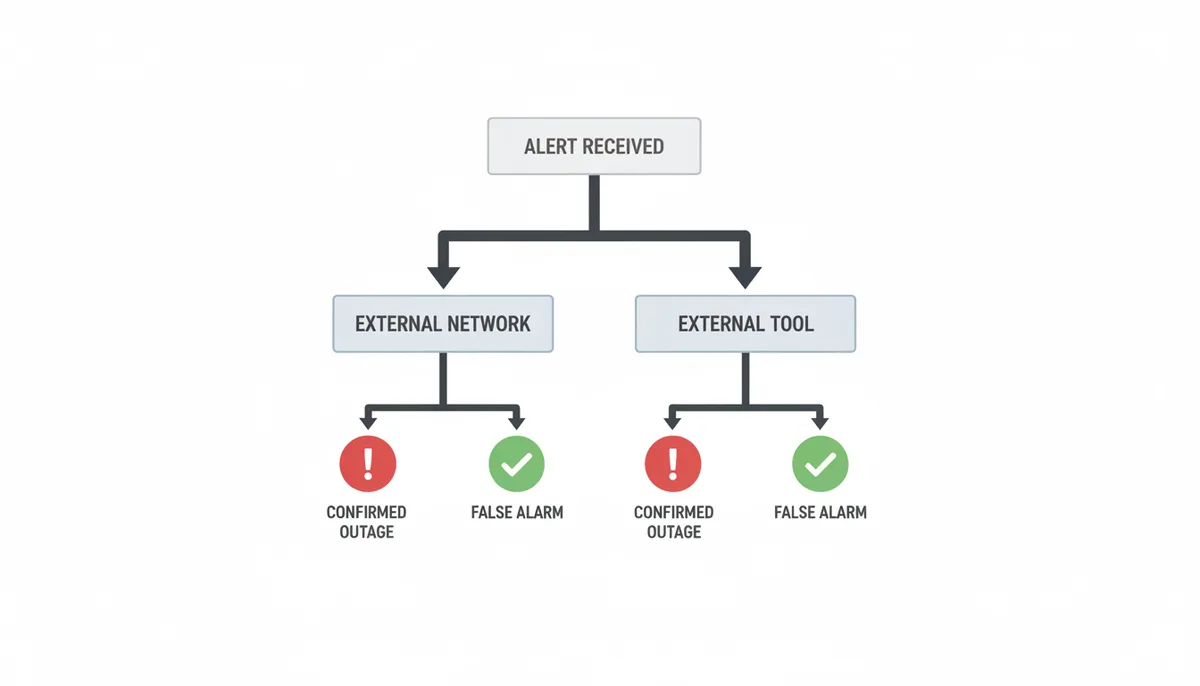
First, rule out a local issue. Is it just you? Don’t just refresh your browser. Check the site from an entirely different network. Use your phone, turn off Wi-Fi to use cellular data, and try to load the page. For a more definitive, global check, use an external tool like IsDownAlarm. Type in your URL. If it shows green for ‘UP’ across its monitoring network, the problem might be your local machine, your office network, or your ISP. You just avoided a major false alarm.
Second, re-read the alert itself. What exactly failed? Was it a simple HTTP 500 error from a single monitoring node in São Paulo? Or was it a connection timeout from six out of eight global nodes? A content match failure means the page loaded but showed the wrong text. The specifics in the alert tell you where to start looking.
Third, check your dependencies. Open the status pages for your core upstream services. If you run on AWS, check the AWS Service Health Dashboard. If you use Cloudflare, check Cloudflare’s status. Check Stripe, SendGrid, Twilio—whatever services are critical to your stack. If one of them is having a major incident, your problem might not be your fault, and your response plan changes entirely.
Minute 2: What's the Blast Radius? Assessing the Impact
You’ve confirmed the outage is real. Now, who and what are affected? This is called determining the ‘blast radius,’ and it dictates everything that follows.
Start with ‘who.’ Is the outage affecting all users or just a subset? Check your real-user monitoring in Datadog or New Relic. Is it all users in Europe? Only mobile app users on version 4.2? Only people trying to use the payment processing tool? The answer determines the severity and who needs to be notified.
Next, define ‘what.’ Is the entire website returning a 503 Service Unavailable error? Or is it a specific API endpoint, like /api/v1/checkout, that’s timing out? Is the site up but unbearably slow? There’s a huge operational difference between a total outage (Sev-1) and a partial degradation (Sev-2). You should have pre-defined criteria for these severity levels. If you don’t, now is the time to assign one based on the impact you see. A Sev-1 means you pull out all the stops. A Sev-3 might mean you handle it without waking anyone else up.
Minute 3: The First Internal Communication: Who to Notify and What to Say
You know it’s real, and you know the impact. Now you have to tell people. But you must do it without causing more panic. Communication now is about facts, not speculation.
Go to your incident channel and post a standardized update. Use a template. It forces clarity and brevity when your brain is fuzzy. It should look like this:
WHAT: Checkout service is experiencing a hard down.
IMPACT: All users are unable to complete purchases. Cart browsing is functional.
STATUS: Investigating cause. Initial checks show 503 errors from US-East load balancers.
NEXT: Next update in 10 minutes.
This message is for the immediate response team and key stakeholders. The head of support needs to know so their team isn’t blindsided by customer calls. Your engineering manager needs to know. This is not the time to @-channel the entire company or post to the public status page. Avoid that until you have more confirmed information.
| Audience | Notify Within | Channel | Message Content |
|---|---|---|---|
| On-Call/SRE Team | 1 minute | PagerDuty/Opsgenie Alert, Dedicated Slack Channel | PagerDuty alert #INC-1234: 'High Error Rate on api-checkout'. External verification shows global outage. Incident channel: #incident-2024-05-28-checkout-down. |
| Support Leadership | 3 minutes | Private Slack/Teams Channel | INCIDENT: Checkout is currently down. Customers cannot complete purchases. We are investigating. Please prepare support team for incoming tickets. Do not make public statements yet. |
| Executive Leadership | 5-10 minutes (for Sev-1 only) | Email or Executive Chat Group | Sev-1 Incident: Customer checkout is down, directly impacting revenue. The engineering team is actively triaging. Next update at [Time, e.g., 02:25 UTC]. |
| Public Status Page | 5-15 minutes | Atlassian Statuspage, etc. | We are currently investigating an issue preventing customers from completing checkout. We will provide an update within 15 minutes. |
Minute 4: The Triage Begins: Finding the Smoking Gun
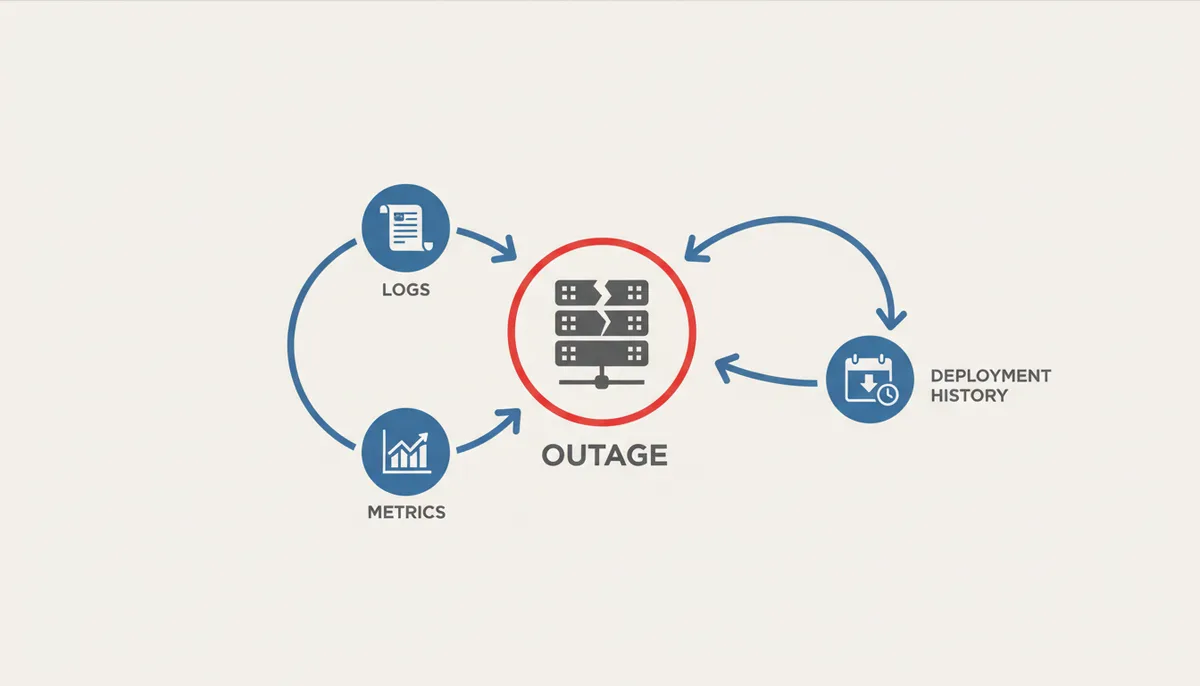
With communication underway, you can now focus on the technical triage. Your goal is to find the ‘smoking gun’—the obvious error that points to the cause. Focus on three areas: logs, metrics, and recent changes.
Logs: SSH into a critical application server or open your centralized log management tool (like Splunk or Papertrail). Tail the error logs. For a web application, that’s often tail -f /var/log/nginx/error.log or journalctl -u your-app-service -f. Look for a wall of red that started exactly at the time of the alert. Look for phrases like ‘OutOfMemoryError’, ‘connection refused’, ‘primary key violation’, or ‘too many open files’. The error message is your best clue.
Metrics: Open your primary observability dashboard. I use Datadog; you might use New Relic or Grafana. Look at the five key metrics for the affected service: CPU, memory, disk I/O, network traffic, and error rate. Is the CPU pinned at 100%? Did available memory plummet to zero? Is the error rate graph a sheer cliff face? Click on the graph to see the exact timestamp of the change. It will almost certainly align perfectly with your alert time.
Minute 5: The Most Likely Suspect: Was There a Recent Change?
The vast majority of outages don’t happen out of the blue. They happen because something changed. Your fifth minute should be dedicated to answering one question: ‘What changed in the last hour?’
Check your deployment pipeline. Did a new code deploy just go out? Check your Git history for the main branch. Was there a merge 20 minutes ago? Check your infrastructure change logs. Did someone run a Terraform apply to modify a security group? Was a feature flag flipped that enabled a new, untested code path?
If you find a change that correlates exactly with the start of the outage, you have your prime suspect. The immediate action isn’t necessarily to understand the root cause; it’s to prepare for a rollback. The fastest path to recovery is often to revert to the last known good state. The decision to roll back can be made before you fully understand the bug. Reverting gets the site back up; you can figure out the ‘why’ later.
Common Culprits and Quick Fixes Within the First Five Minutes
While every outage is unique, many fall into predictable patterns. If your triage points to one of these, here’s your playbook for a quick, reversible mitigation.
| Incident Type | Primary Symptom | Fastest Path to Mitigation |
|---|---|---|
| Bad Code Deploy | Error rate spikes immediately and precisely after a deployment. | Trigger the automated rollback procedure in your CI/CD pipeline. Do not attempt to hotfix the live system; revert to the last known stable state. |
| CPU/Memory Exhaustion | 100% CPU utilization, ‘Out of Memory’ kills in logs, no available memory. | Restart the affected service or Kubernetes pod to clear the resource deadlock. Check metrics post-restart to confirm it holds. |
| Database Lock | Application logs show query timeouts; DB processes are ‘waiting’ or ‘idle in transaction’. | Identify and kill the specific long-running, locking query using your database admin tool. This is a temporary fix to restore service. |
| Third-Party API Outage | Your alerts fire, but the third-party status page shows a major incident affecting their service. | Implement a pre-built circuit breaker or disable the feature flag for the dependent functionality to gracefully degrade the user experience. |
| DNS Misconfiguration | Domain resolves incorrectly or not at all for some users, often after a recent DNS change. | Immediately revert the most recent change in your DNS provider's dashboard (e.g., Cloudflare, Route53) to the previous known-good values. |
Beyond Five Minutes: Assembling the War Room and Setting a Cadence
If the issue isn’t resolved or identified within five minutes, you’re likely moving into a major incident. The solo triage is over; it’s time to escalate.
Use your alerting tool to escalate the incident. In PagerDuty, this means adding more responders—the database admin, the network engineer, the lead developer for the affected service. Formally assign an Incident Commander. Their job isn’t to fix the issue but to run the process: coordinate efforts, manage communication, and ensure there’s a clear path forward.
The most important thing the Incident Commander does is set and enforce a communication cadence. They should announce, “The next update will be in 15 minutes.” And then they must provide that update at the 15-minute mark, even if the update is, “No new information. We are still investigating logs from the EU region.” This regularity stops managers from constantly pinging you for updates and allows the engineers to focus on fixing the problem.
The Psychology of Panic: Why Your First Instincts Are Wrong
When the alert fires, your body hijacks your brain. It's a biological response—a flood of adrenaline and cortisol designed for running from predators, not debugging distributed systems. This state, often called an amygdala hijack, makes you stupid. You'll be tempted to do the very things that waste the most critical minutes.
Your worst instinct is to start fixating on a single, pet theory. Maybe you had an argument about a database query in a code review last week. The second the site goes down, you'll be convinced that's the cause. You'll SSH directly to the database and start running EXPLAIN statements on queries, ignoring the fact that your initial verification hasn't even been completed. This is called anchoring bias, and it will lead you down a rabbit hole while the real problem continues unabated.
Another terrible instinct is to start making changes. You'll see high CPU and think, "I'll just restart the service to see if that helps." Without a clear diagnosis, this is like performing surgery in the dark. You might temporarily alleviate a symptom while making the root cause worse, or you might destroy valuable forensic evidence that was living in the process's memory. The only changes you should make in the first five minutes are those aimed at gathering more information, not changing the system's state.
The playbook exists to override these instincts. It gives your panicking brain a script to follow. Clicking "Acknowledge," running the verification steps, posting the comms template—these are simple, concrete tasks that force you back into your prefrontal cortex, the part of your brain responsible for logical, executive function. You're not thinking; you're following a drill. And that's exactly what you need.
A Worked Example: The Silent API Failure
Let's walk through a real, non-obvious scenario. Your alert is for the `POST /api/v1/order` endpoint. The alert condition is: "5xx error rate > 25% for 5 minutes." It's 2:17 a.m. Go.
Minute 0: You acknowledge the PagerDuty alert and create #incident-2024-05-28-order-api.
Minute 1: Verification. You check IsDownAlarm for your domain—it shows UP. This is confusing. You re-read the alert: it's specifically for the order API endpoint, not the homepage. You craft a curl command to test the endpoint directly: curl -X POST https://api.yoursite.com/v1/order -H "Content-Type: application/json" -d '{"test":true}'. It returns a 200 OK, but the response body is empty. That's not right. It should return a order confirmation JSON object.
Minute 2: Blast Radius. You check your observability dashboard. The error rate for the order endpoint is indeed 100%, but the overall application error rate is low. The impact is isolated: every customer trying to place an order is failing, but browsing and cart activity are fine. This is a Sev-1 for revenue, but not a total site outage.
Minute 3: Communication. You post to the incident channel: "WHAT: Order API is failing silently. IMPACT: 100% of order attempts are failing. Customers receive a 200 but no order confirmation. STATUS: Investigating application logs. NEXT: Update in 10."
Minute 4: Triage. You tail the application logs for the order service. You don't see a wave of exceptions. Instead, you see normal-looking log lines: "Order request received for user_id: 12345." But you don't see the subsequent "Order confirmed" log. The process is hanging somewhere after receiving the request but before completing it.
Minute 5: Recent Changes. You check the deployment log. A new version of the `payment-service` client library was deployed 25 minutes ago. It was a minor version bump, deemed low risk. The order service calls the payment service. The smoking gun isn't in your logs; it's in the absence of logs. The thread is probably blocked on a call to the new payment library that's timing out indefinitely.
The immediate mitigation isn't a rollback of the order service, but of the payment library deploy. You've gone from panic to a highly probable cause and a clear action in five minutes.
When the Checklist Fails: Handling the True Anomaly
Sometimes, you'll run through the five-minute drill and find nothing. IsDownAlarm confirms a global outage. Your status pages are green. Your logs are clean. Your metrics show everything is normal, except for the fact that users are getting 500 errors. Your recent changes log is empty for the last 48 hours. This is the true test.
Your first move is to trust your verification. If multiple external tools confirm the site is down, but your internal dashboards say it's up, your internal dashboards are lying. The most common cause for this is a failure between your users and your application that your application is blind to.
Your investigation must now expand laterally. This is when you start running diagnostic commands from a place that can't reach you. Use a tool like Pingdom or GCP's cloudping.ai to run a traceroute to your domain. You might find that a major internet backbone, like Level3, has dropped a route, making your site unreachable from large swaths of the internet. This is completely outside your control.
Another culprit is DNS poisoning or a hijacking. Use dig from an external server to check your DNS records: dig @8.8.8.8 yourdomain.com. Does the IP address it returns match your servers? If not, your DNS provider may have been compromised or misconfigured.
Finally, consider a certificate apocalypse. An intermediate certificate authority your TLS cert depends on might have expired or been revoked. Browsers will refuse to connect, but your server, which already has the cert, will happily run along thinking everything is fine. Checking this requires external SSL labs, not internal tools.
In these scenarios, your five-minute response isn't about fixing it—it's about correctly identifying that the problem is in the network, DNS, or TLS layer, and escalating accordingly to your infrastructure or networking team.
Building Your Own Five-Minute Drill
This article provides a generic playbook, but yours needs to be specific. Building it is a quiet-time activity, not something you do during an incident. Start with your last three major outages. For each one, work backwards: what was the ultimate cause, and what evidence of it was available within the first five minutes?
If the cause was a bad deploy, your drill should emphasize the "Recent Changes" step. Your team should know exactly which dashboard or CLI command to run to get a one-minute deploy history.
If the cause was database overload, your "Triage" step should include a direct link to your database monitoring dashboard, not just your application metrics. You might even pre-write the command to find the top 5 longest-running queries.
This is also where you define severity levels clearly. A "Sev-1" shouldn't be "something bad." It must be a precise, measurable definition, using clear language to remove ambiguity. For example, your policy could define a Sev-1 as ">95% of user requests resulting in 5xx errors for 2 consecutive minutes." This objectivity removes hesitation when declaring a major incident.
The final step is to document it all in a runbook and—crucially—practice it. Run a game-day simulation every quarter. Trigger a fake alert and have the on-call engineer go through the motions. You'll find the gaps in your process immediately. Maybe the link to the status page dashboard is broken, or the required Slack channel naming convention isn't documented. You find those problems in a simulation, not at 3 a.m. when the real thing happens.
FAQ
What if the downtime alert was a false positive?
First, document it in your incident log as a false positive. Then, the most important step: create a follow-up task to tune the alert. Was the threshold too sensitive? Did it check from a unreliable location? Frequent false positives train your team to ignore alerts, which is how you sleep through a real catastrophe.
What's the difference between an incident and a problem?
An incident is the fire—the event that’s actively disrupting service. Your goal is to put it out as quickly as possible. A problem is the faulty wiring that caused the fire. Problem management is the retrospective process of finding that root cause and fixing it for good so the fire doesn’t happen again. You manage incidents during the outage; you manage problems after the site is back up.
Should we have a 'blameless post-mortem' for every downtime?
For any significant, customer-impacting outage (e.g., Sev-1 and Sev-2), yes. The goal is never to blame a person. The goal is to understand the series of events and systemic conditions that led to the failure. A good post-mortem produces concrete action items to improve the system, such as adding a new monitoring check or improving the rollback process.
What if I'm the only person on call and can't solve it myself?
Your on-call process must include a defined escalation path, even if you’re a solo developer. This is your lifeline. Who do you call when you’re in over your head? It might be a former colleague you contract with, your hosting provider’s support, or a manager. Know who that person is and have their contact information saved before your database crashes at 2 a.m.
When should I update my public status page?
Update it after you have confirmed the incident is real, have a basic understanding of the impact (e.g., “We are investigating issues with our checkout service”), and have notified your internal teams. This usually happens around the 5-10 minute mark. Your first post should acknowledge the issue and state you are investigating. Silence erodes trust faster than a frank admission of a problem.
How can I automate parts of this initial response?
This is where ChatOps shines. Tools like PagerDuty can be configured to automatically create a Slack channel, invite the right responders, and post the initial alert details when a high-severity incident is triggered. You can even set up workflows to run initial diagnostic commands and post the results into the channel. This automation shaves precious minutes off your initial response.
Sources
- Google SRE — The concepts of incident management, assigning roles like an Incident Commander, and the philosophy of treating incidents as unplanned investment in reliability.
- PagerDuty — Best practices for the human side of incident response, including acknowledging alerts, escalation policies, and communication strategies from a leader in the alerting space.
- Atlassian — The importance of establishing a communication cadence, using a war room/incident channel, and defining severity levels to guide the response.
- AWS Well-Architected Framework — The technical principles behind building resilient systems, particularly the Reliability Pillar, which covers failure detection, monitoring, and automated recovery mechanisms relevant to quick fixes.
- Internet Engineering Task Force (IETF) — The claim that using precise, standardized language (MUST, SHOULD, MAY) is critical for clear, unambiguous communication during high-stakes incidents.