How to Read Uptime and Response Time Together
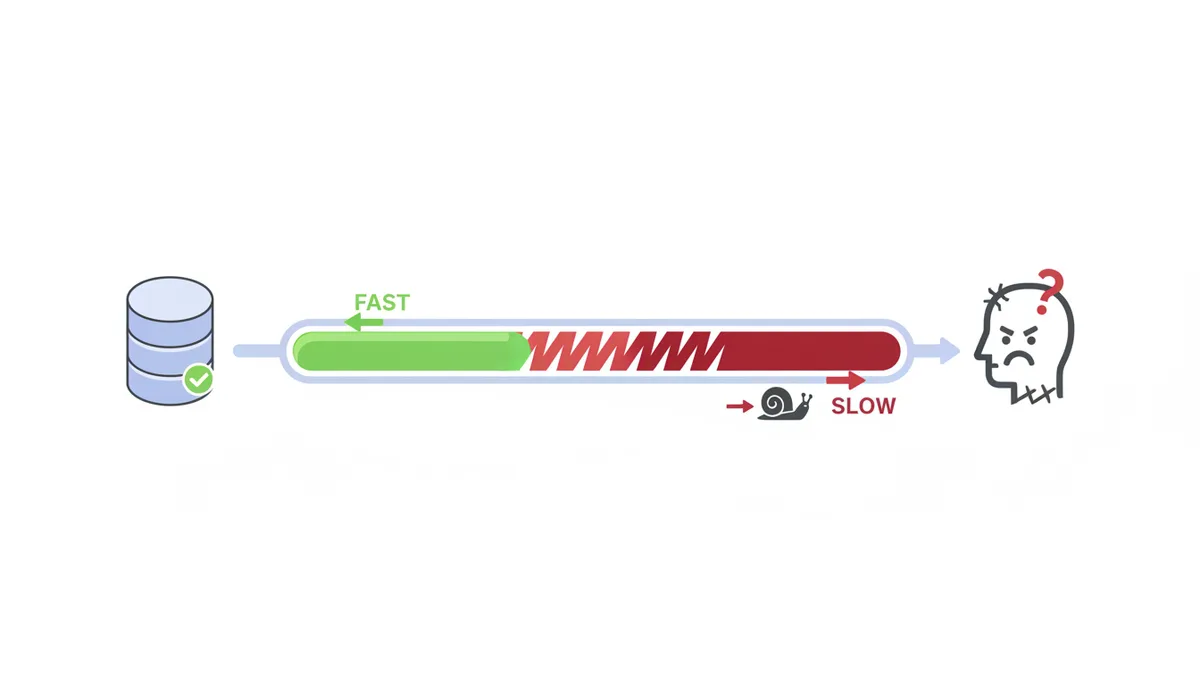
Why '100% Uptime' Can Still Mean Your Website is Failing Imagine you run an e-commerce site. The monitoring tool shows 100% uptime. Your server is technically "up," but every page
Why '100% Uptime' Can Still Mean Your Website is Failing
Imagine you run an e-commerce site. The monitoring tool shows 100% uptime. Your server is technically "up," but every page takes 10 seconds to load. Users abandon their carts, revenue drops, and customer support is flooded with complaints.
This is the availability illusion: a site can pass uptime checks while delivering a terrible user experience. Performance degradation is often more insidious than a full outage. It erodes trust slowly, costing you money and reputation long before a hard crash ever happens. This article will teach you to read both uptime and response time together to catch these silent failures before they spiral.
Uptime vs. Response Time: Understanding Your Two Most Critical SLIs
Uptime and response time are two sides of the same coin. Uptime tells you if your site is available; response time tells you if it's fast enough to matter. Here’s how they stack up:
| Metric | What It Measures | Unit | Typical Goal | What It Misses Alone |
|---|---|---|---|---|
| Uptime | Percentage of time the server responds with a 2xx/3xx status | % | >99.9% | Performance issues when the site is "up" but slow |
| Response Time | Time from request to first byte of response | ms | <200ms | Regional latency or availability issues |
Uptime alone won’t tell you if your site is sluggish. Response time alone won’t tell you if it’s down. Together, they form a complete picture of health.
How Monitoring Tools Capture This Data
Tools like IsDownAlarm use synthetic monitoring to simulate a user’s journey. Here’s the sequence:
- DNS lookup: Resolves the domain to an IP address.
- TCP handshake: Establishes a connection to the server.
- TLS handshake: Secures the connection (if HTTPS is used).
- HTTP request: Sends the request to the server.
- Time to First Byte (TTFB): Waits for the server to start responding.
- Content download: Retrieves the full response.
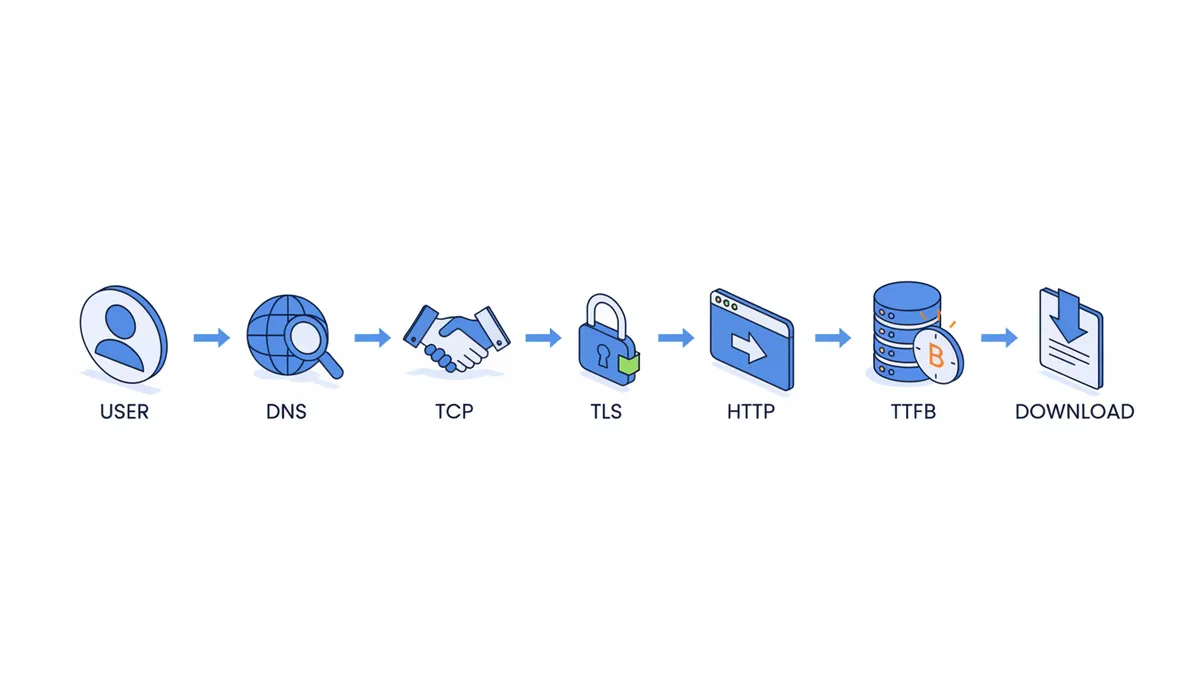
Uptime is determined by whether the server returns a 2xx/3xx status. Response time is measured from the start of the request to the first byte of the response. Real User Monitoring (RUM) adds user-side data like page load time and JavaScript execution, but synthetic monitoring is key for proactive alerting.
The Four Key Patterns: Reading Uptime and Response Time Together
By plotting uptime and response time on a 2x2 matrix, you can diagnose four critical patterns:
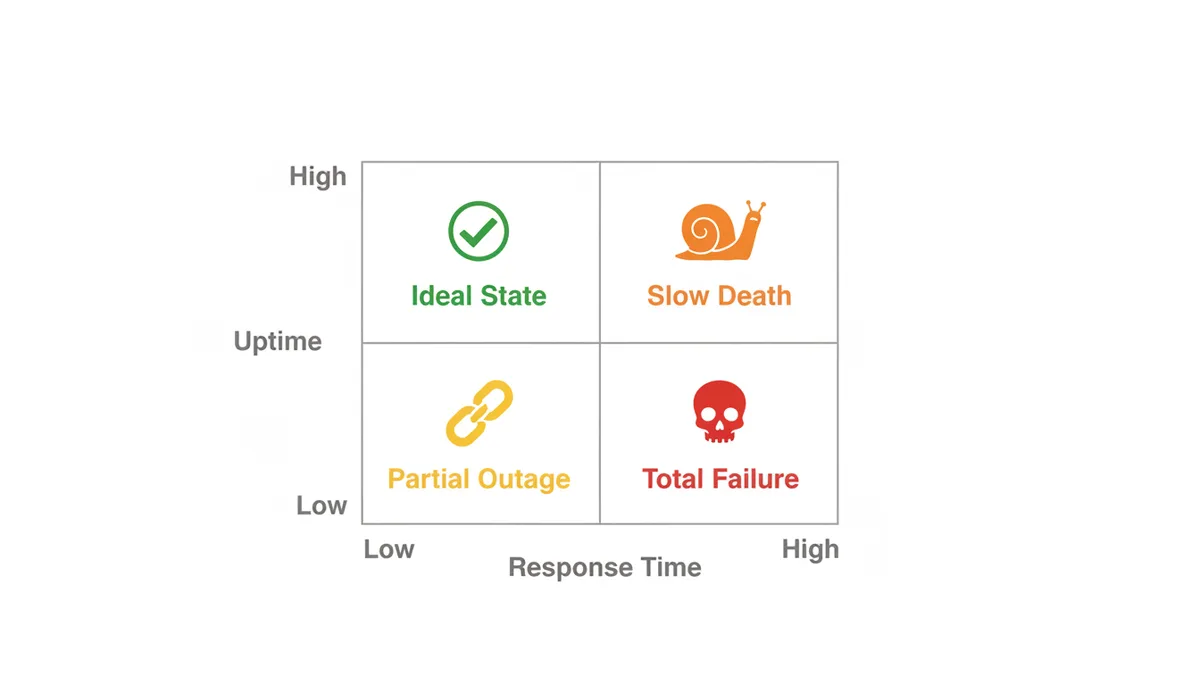
Pattern 1: High Uptime, Low Response Time (The Ideal State)
Your site is available and fast. No action needed—keep monitoring.
Pattern 2: High Uptime, High/Increasing Response Time (The 'Slow Death')
The server is up but sluggish. This often signals resource exhaustion (e.g., high CPU usage) or inefficient code. For example, a poorly optimized database query might cause TTFB to creep from 200ms to 1.2s over a week.
| Metric Pattern | Likely Cause | What to Inspect Next | First Fix to Try |
|---|---|---|---|
| High uptime + rising p95 TTFB + flat traffic | Database/query/app regression | Server logs, query performance, app code changes | Optimize slow queries, add caching, or refactor code |
| High uptime + high DNS/TLS time in one region | DNS/CDN/network issue | DNS resolver logs, CDN health in that region, regional latency tests | Switch DNS providers, adjust CDN routing, or add regional edge nodes |
| Intermittent uptime drops + high latency during traffic peaks | Capacity or autoscaling issue | Autoscaling logs, server resource metrics (CPU, memory) | Adjust autoscaling thresholds or add more capacity |
| Low uptime + fast failures | DNS, firewall, or process crash | DNS propagation status, firewall rules, server process logs | Restart server, update DNS, or fix firewall misconfigurations |
Pattern 3: Low Uptime, High Response Time (The Overload)
Your server is overwhelmed. Traffic spikes or DDoS attacks can cause this. Imagine a 50% uptime with 800ms response time when the site is available—users who reach it still face delays.
Pattern 4: Low Uptime, Low Response Time (The 'Hard Down')
The server is unreachable, but failures are quick (e.g., DNS errors). This points to network issues or a crashed server process.
From Pattern to Problem: Diagnosing the Root Cause
Each pattern points to specific fixes:
- Slow Death: Optimize code, scale databases, or add caching. For example, a PHP script with a memory leak might cause TTFB to rise gradually.
- Overload: Scale infrastructure or mitigate DDoS attacks. A misconfigured load balancer might drop connections during traffic spikes.
- Hard Down: Check DNS, firewalls, or server logs. A crashed Nginx process might return 502 errors instantly.
Setting Actionable Thresholds for Proactive Alerting
Define Service Level Objectives (SLOs) to guide alerts. For example:
- Uptime SLO: 99.95% monthly uptime (13.8 minutes of downtime allowed).
- Response Time SLO: 99% of requests under 400ms.
Use multi-tiered alerts: warn at 300ms, escalate at 500ms. Alerting on trends (e.g., a 50% increase in TTFB over an hour) can catch issues earlier than static thresholds.
Choosing Your Monitoring Strategy: Synthetic vs. RUM
Synthetic monitoring gives a controlled baseline for backend performance. RUM captures real user experiences. Here’s how they compare:
| Data Source | Best For... | Pros | Cons | Example Question |
|---|---|---|---|---|
| Synthetic | SLA tracking, backend issues | Consistent, proactive | No user context | "Is my server slow?" |
| RUM | User experience, frontend issues | Real-world insights | Varies by device/geography | "Are users in Brazil having a slow experience?" |
Use both. Synthetic tells you if your infrastructure is healthy; RUM tells you if users are happy.
Beyond Uptime and Response Time: Adding Error Rate and Geography
HTTP error rates complete the picture. A 500 error means a server failure; a 404 is a client-side issue. Monitor error rates from multiple regions to catch localized problems like CDN failures.
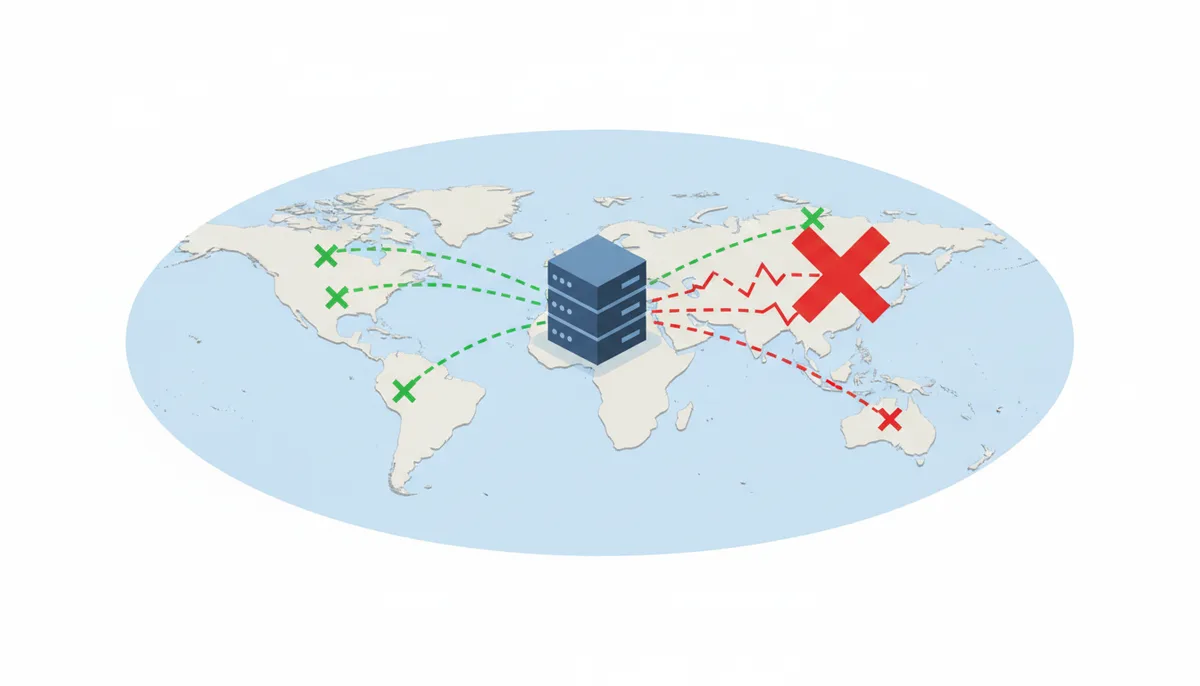
For example, if users in Australia see 500 errors while others don’t, the issue might be a regional DNS misconfiguration.
How to Interpret Uptime and Response Time Trends Over Time
Monitoring isn’t about snapshots—it’s about spotting trends. A single high response time or brief downtime might be noise, but a consistent upward trend in response time or recurring outages at specific times of day signal systemic issues. For example, if your site’s average response time increases by 15% every week for four weeks, even with 99.9% uptime, it’s a warning sign of resource exhaustion. Here’s how to read these trends:
- Daily/Weekly Patterns: Use time-series graphs to spot daily peaks. If response time spikes at 10 AM every weekday, it might correlate with a scheduled job or batch process. If uptime drops on weekends, it could point to automated maintenance tasks failing outside core hours.
- Correlation with Traffic: Cross-reference uptime/response time with traffic logs. A surge in traffic paired with rising response time suggests your server can’t scale. If traffic is flat but response time is climbing, the issue is likely internal (e.g., memory leaks, inefficient code).
- Seasonal Trends: E-commerce sites often see traffic spikes during holidays. If response time stays steady during these periods, your infrastructure is resilient. If it degrades, you need to scale ahead of next year’s peak.
Tools like Grafana or IsDownAlarm’s historical data can automate this analysis. Set alerts for sustained increases (e.g., “response time > 300ms for 2 consecutive hours”) to catch trends before they cause outages.
Real-World Case Study: Diagnosing a Performance Degradation in an E-Commerce Platform
A hypothetical e-commerce platform using IsDownAlarm observed a gradual increase in response time from 300ms to 800ms over four weeks, with no reported downtime. Here’s how they diagnosed the issue:
- Step 1: Isolate the Problem: They split response time into phases. DNS/TCP/TLS were normal, but Time to First Byte (TTFB) had jumped from 150ms to 700ms. This pointed to server-side processing, not network latency.
- Step 2: Check Server Logs: Server logs revealed a spike in database query times. A new feature added the previous month had introduced a poorly optimized SQL query, causing the database to return results 5x slower.
- Step 3: Implement Fixes: They rewrote the query, added indexing, and cached frequent requests. Response time dropped back to 250ms, and user experience improved significantly.
This case illustrates how uptime tools alone won’t flag performance degradation unless you analyze response time components. Had they ignored the 800ms TTFB, the site would’ve lost more users before the issue was caught.
The Role of Caching and CDNs in Balancing Uptime and Response Time
Caching and Content Delivery Networks (CDNs) are critical for balancing uptime and response time. Here’s how they work:
- Edge Caching: CDNs like Cloudflare or Akamai cache static assets (images, CSS, JS) at edge locations worldwide. This reduces server load and latency for users far from the origin server. For example, a user in Brazil accessing a server in the U.S. might see a 50% faster response time with a CDN enabled.
- Application-Level Caching: Tools like Redis or Memcached cache dynamic content (e.g., search results, user dashboards). This prevents the database from being overwhelmed, improving TTFB during traffic spikes. A poorly cached login page might take 1.2s to load during peak hours, but with caching, it could drop to 200ms.
- Failover and Redundancy: CDNs also act as a buffer during outages. If the origin server goes down, a CDN can serve cached content, maintaining uptime even if the backend is unreachable. This is why 99.9% uptime is often achievable with a CDN, whereas a site without one might struggle to hit 99%.
However, caching isn’t a silver bullet. Misconfigured cache TTLs (Time to Live) can serve stale content during outages, and CDNs can introduce latency if not optimized for your user base. Always test caching strategies with real-world traffic patterns.
Understanding the Cost Trade-Offs of High Uptime and Low Response Time
High uptime and fast response times cost money. Here’s how to balance the trade-offs:
- Infrastructure Costs: Achieving 99.99% uptime requires redundant servers, load balancers, and auto-scaling. For example, a site with 10,000 monthly visitors might spend $500/month on a single server but $2,000/month on a multi-region setup with failover. To decide if the extra $1,500 is worth the 0.09% uptime improvement, calculate expected downtime costs: 0.01% downtime = 4.32 minutes/month. If revenue-at-risk is $100/minute, the $432/month cost of downtime must be compared to the $1,500 redundancy cost.
- Monitoring Costs: Advanced monitoring tools (e.g., synthetic checks from 20+ locations, RUM data) add costs. A basic IsDownAlarm plan might cost $10/month, but enterprise solutions with real-time analytics could be $500+/month. Compare this to potential revenue loss from outages—$500/month might be worth it if downtime costs $5,000/hour. For example, 1 hour of downtime = $5,000 in lost revenue. If monitoring reduces outages by 50%, it pays for itself in 10 outages/year.
- Opportunity Costs: Time spent optimizing for 200ms TTFB could be spent on features that drive revenue. For a SaaS startup, shaving 100ms off load time might not matter as much as adding a new API endpoint. Prioritize based on user impact: if 100ms improvements increase conversions by 1%, compare that to the cost of development time.
Use cost-benefit analysis to decide your priorities. For example, an e-commerce site might invest heavily in uptime and response time, while a personal blog might prioritize cost savings over 99.9% uptime. Define your Service Level Objectives (SLOs) based on what your users—and your budget—can handle.
Common Misconfigurations That Affect Uptime and Response Time Metrics
Even the best monitoring tools can’t compensate for misconfigurations. Here are three common pitfalls:
- Health Check Endpoints: Many uptime tools ping a simple “/health” endpoint. If this endpoint doesn’t reflect real traffic (e.g., it doesn’t hit the database), it might report 100% uptime while the actual site is slow. Always configure health checks to mimic real user requests.
- DNS TTL Settings: Low DNS Time to Live (TTL) values (e.g., 30 seconds) can cause unnecessary DNS lookups, increasing latency. Set TTL to 1–2 hours for stable domains, but keep it low during active maintenance to allow quick failover.
- Load Balancer Timeouts: If a load balancer waits 60 seconds for a server to respond before timing out, users might see a 504 Gateway Timeout even if the server is technically “up.” Reduce timeouts to 10–15 seconds to fail fast and avoid user frustration.
These misconfigurations can create false positives or mask real issues. Regularly audit your infrastructure settings, especially after deployments or configuration changes.
The Impact of Third-Party Services on Your Uptime and Response Time
Modern websites rely on dozens of third-party services—analytics scripts, ad networks, payment gateways. Each of these can affect your uptime and response time:
- Script Blocking: A slow-loading ad script can delay the entire page. For example, a 2s delay in loading a third-party analytics script can increase your page load time by 2s, even if your server is fast. Use async or defer attributes to load such scripts non-blockingly.
- API Dependencies: If your site fetches data from an external API (e.g., weather info), and that API is down, your site might return 502 or 504 errors. Implement retries with exponential backoff and fallback content (e.g., “Service unavailable”) to maintain uptime.
- Regional CDN Failures: A CDN outage in a specific region can make your site inaccessible to users there. Mitigate this by using a CDN with multi-region redundancy or a backup CDN provider.
Use tools like WebPageTest to audit third-party scripts and APIs. Identify which ones are critical and which can be optimized or removed. For non-critical services, load them asynchronously with timeouts to prevent them from dragging down your site.
FAQ
My uptime is 99.9%. Is that good enough?
99.9% uptime allows 43.8 minutes of downtime per month. For an e-commerce site, that’s thousands in lost revenue. For a personal blog, it’s probably fine. Define your target based on your users’ needs.
What’s a 'good' website response time?
TTFB under 200ms is excellent; under 500ms is a common goal. Full page load under 2 seconds is ideal, but it depends on page complexity.
Can’t I just use Google Analytics for this?
No. GA tracks user behavior and has some RUM data, but it doesn’t proactively check uptime. You need a tool like IsDownAlarm for 24/7 availability checks.
My response time is high, but only for users in Asia. What does that mean?
This suggests a network or CDN issue. Your server might be fine, but data delivery to Asia is slow. Check your CDN configuration for that region.
How can I tell the difference between a slow server and a slow network?
Look at the breakdown of response time. Long DNS/TCP/TLS phases point to network issues. Long TTFB points to server/application problems.
What is an Apdex score and how does it relate to this?
Apdex (0–1) summarizes user satisfaction based on response time. It’s a user-centric metric that weights "satisfied" (TTFB <1s), "tolerating" (1s–4s), and "frustrated" (>4s) interactions.
Sources
- Google SRE Book — The definitions and philosophy behind Service Level Indicators (SLIs), Objectives (SLOs), and Agreements (SLAs).
- MDN Web Docs — Technical definitions of web performance metrics like Time to First Byte (TTFB) and the components of page load time.
- Cloudflare Learning Center — Authoritative explanations of networking concepts including latency, DNS, SSL/TLS handshakes, and how CDNs impact performance.
- W3C Performance Timeline Specification — The official web standard that defines how browsers should measure and expose performance timing data, which is the foundation of Real User Monitoring (RUM).
- Grafana Labs Blog — Practical examples and best practices for visualizing and alerting on performance metrics like uptime, latency, and error rates, particularly the four golden signals.