Why a Website Can Be Up for Some People and Down for Others
You need to send an invoice. The client is waiting. You open the billing portal and get a white error screen. You try again. Same result. You message your business partner in anoth

You need to send an invoice. The client is waiting. You open the billing portal and get a white error screen. You try again. Same result. You message your business partner in another city, and two minutes later they send a screenshot of the portal working perfectly, payments processing, everything green. You are not hallucinating. The website is not universally broken, and it is not universally fine. It is down for you, and up for them, because a website is only the last link in a chain of independent systems that can fail in isolation.
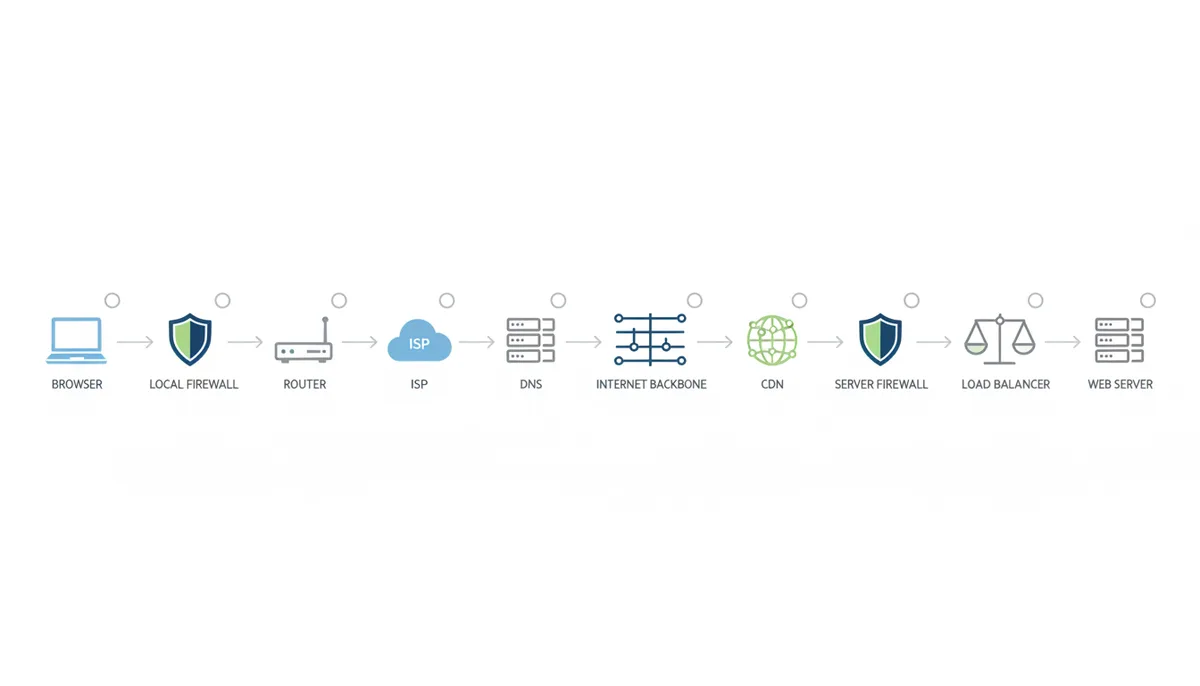
When you type a URL and press Enter, your request does not travel in a single leap. It hops through a sequence of separate machines, each with its own configuration, cache, and mood. Your browser assembles the request. Your local firewall inspects the outbound packet. Your router translates your private network address into a public one. Your Internet Service Provider aggregates your traffic and chooses where to send it.
A DNS resolver looks up the address. The internet backbone routes the packet across continents. A Content Delivery Network, or CDN edge server might answer instead of the origin. If the request reaches the host, it still has to pass through their firewall, a load balancer, and finally the web server itself.
A failure at any single link breaks the chain for you while leaving everyone else untouched. Your browser might be holding a file from last month that no longer matches the site's current code. Your office firewall might block social media during work hours. Your ISP's DNS resolver might be caching an IP address that was retired six hours ago. A CDN server in London could have lost power, while the identical server in Singapore hums along. The destination server itself might have decided your shared office IP address looks suspicious and dropped your packets into a black hole. Each failure produces the same symptom: a page that refuses to load.
Because you cannot see this chain from your desk, you need an outside perspective. A third-party status checker like IsDownAlarm acts as an objective arbiter. It tests the site from an independent network location, separate from your device, your router, and your ISP. If the checker reports that the site is up, you know immediately that the failure lives somewhere between your keyboard and the server. That is where your real diagnosis begins.
Could the Problem Be on Your Own Device?
Before you blame the internet, rule out the machine sitting in front of you. Browsers are aggressive about caching. They store copies of images, stylesheets, JavaScript files, and even entire page structures so that repeat visits feel instant. When a website changes its file structure, updates its SSL certificate, or moves assets to a new domain, your browser might still be trying to assemble the current page using weeks-old cached resources. The result looks like a catastrophic failure. Forms submit to nowhere. Login pages redirect in an infinite loop. Styles vanish and leave raw text scattered down the screen.
Clearing the cache is the fix, but many people do it wrong. They press the refresh button, or they hard-refresh with Ctrl+F5, and when that fails they assume the site is down. A hard refresh sometimes bypasses the cache, but modern browsers use service workers and memory caches that a simple refresh will not clear. Open your browser settings, navigate to the privacy or history section, and clear cached images and files for at least the last twenty-four hours. Keep your cookies if you want to stay logged into other services, but remove the cache entirely. Then close every browser window and reopen the application. Many users skip the full restart and wonder why the page still looks broken.
Browser extensions are another hidden culprit. Ad blockers, privacy shields, script blockers, and even password managers can interfere with essential functionality. Developers often load critical scripts from third-party domains or content delivery networks. An overzealous ad blocker might see a request to a tracking domain and cut it off, not realizing that domain also hosts the login logic or payment form validation. A privacy extension might strip your referrer header or alter your user-agent string, causing the server to refuse the request entirely. The page skeleton loads, but the interactive pieces never initialize. You think the site is down; really, your shield cut the power to its brain. Disable every extension, reload the page, and test. If the site works, enable extensions one by one until you find the one at fault.
Your operating system maintains its own DNS cache, completely independent of your browser. When a website moves to a new server, its IP address changes. Your computer might be holding onto the old address, meaning every time you visit the domain, you knock on a door that no longer exists. On Windows, open Command Prompt as an administrator and run ipconfig /flushdns. You will see a confirmation that the DNS Resolver Cache has been flushed. On macOS, the exact command varies by release, but sudo dscacheutil -flushcache followed by sudo killall -HUP mDNSResponder covers most modern versions. Google Chrome also keeps an internal DNS cache separate from the operating system, which you can clear by navigating to chrome://net-internals/#dns and clicking clear cache. If you flush your OS cache but not the browser's internal cache, the stale record can persist.
Is Your Local Network Blocking the Connection?
If two devices in your house cannot reach the site, the problem likely lives in the network equipment they share. Start with your router. These devices run for months or years without a restart, and their Network Address Translation tables, route caches, and DNS client states can drift into confusion. A router might have a full NAT table, meaning it cannot map new outbound connections, or it might be holding stale DNS entries and serving them to every phone, laptop, and smart TV in your home. Power cycling helps, but only if you do it properly. Unplug the router's power cable, wait a full thirty seconds for the capacitors to drain and the ISP to register the disconnect, then plug it back in. Wait for the connection lights to stabilize before testing. A ten-second flick of the switch often accomplishes nothing because the memory retains its state.
A deeper issue is the DNS server your router advertises to every device on your network. Most home routers act as a DNS relay. They accept queries from your devices and forward them to your ISP's resolvers. If those resolvers are slow, filtering results, or experiencing an outage, your entire network loses the ability to translate domain names into IP addresses. You can test this by manually changing the DNS settings on one device to use 1.1.1.1 or 8.8.8.8 (Google Public DNS). If that device suddenly works while the rest of the house does not, your router's DNS relay or your ISP's resolvers are the bottleneck. Log into your router's admin panel, usually at 192.168.1.1 or 192.168.0.1, and override the DNS entries in the WAN or DHCP settings. Replace them with public resolvers and reboot the router.
Corporate and campus networks introduce gatekeepers that home users rarely face. Network administrators routinely block categories of sites—social media, streaming platforms, file sharing, or anything tagged as a security risk or productivity drain. If you are on a lunch break at the office and Reddit will not load, there is a decent chance the firewall is doing exactly what it was told to do. These blocks often return generic browser error pages or simply time out, which looks identical to a real outage. Some corporate networks also perform SSL inspection, injecting their own certificates into secure connections to scan traffic. If your browser does not trust the injected certificate, it will refuse to load the site and display a frightening security warning. The site is not down. The middleman broke the handshake.
Proxy servers in office environments add another layer of failure. Companies route all outbound traffic through a proxy to filter content, log activity, or cache common resources. Your browser might be configured automatically via a PAC file—a script that tells it which proxy to use for which URL. If that PAC file is unreachable, or if the proxy itself is overloaded, misconfigured, or has lost its upstream connection, every employee experiences an outage that the rest of the world does not share. You can test for this by comparing your office connection against your phone's mobile data. If the site works on LTE but fails on the corporate Wi-Fi, the proxy or firewall is almost certainly intercepting or blocking the request.
How Can Your ISP or Location Cause an Outage?
Once your request leaves your building, it enters your ISP's network, and that is where regional peculiarities begin to dominate. The DNS servers your ISP assigns by default are often under-provisioned. They can be slow, they can crash under localized load, and they can hold outdated or filtered records longer than they should. Some ISPs even hijack DNS queries, returning an advertisement-filled landing page whenever you try to reach a non-existent domain. That behavior breaks applications that expect a clean error response. Switching to a public DNS resolver is one of the fastest diagnostic tricks available. Set your device to use 8.8.8.8 (Google Public DNS) or 1.1.1.1 (Cloudflare DNS). If the site loads immediately, your ISP's DNS was the culprit. Many people leave their devices on public resolvers permanently because the performance and reliability gains are obvious.
The internet is often described as a cloud, but it is really a collection of independently operated networks that must constantly negotiate with each other. They do this using the Border Gateway Protocol, or BGP. Think of it as a group of postal services agreeing which trucks will carry mail for which zip codes. Each ISP announces to its neighbors which blocks of IP addresses it can reach and how to get there. If an ISP accidentally withdraws an announcement or publishes a malformed route, traffic can get stranded. Your packets travel normally for ten or twelve hops, then hit an intermediate network that claims it no longer knows how to reach the destination. From your perspective, the site has vanished. From the perspective of users on a different ISP with a different peering relationship, everything is fine. These routing errors create temporary islands where pockets of the internet cannot reach certain destinations. There is no fix on your end except to wait for the networks to correct their routing tables or to use a VPN that tunnels out through an unaffected provider.
In some regions, ISPs are legally required to block access to certain sites. The block might be implemented at the DNS level, where the ISP returns a fake IP address that leads to a government warning page. It might be implemented at the routing level, where the ISP simply drops packets bound for the forbidden address block. It might even use a transparent HTTP proxy that intercepts the request and serves a denial. You might see a browser timeout, a blocked page, or an SSL certificate error. Users on a different provider in the same city, or in a different country entirely, experience none of this. The site is up. Your path to it has been severed by policy.
| Attribute | ISP DNS | Google Public DNS | Cloudflare DNS |
|---|---|---|---|
| Speed | Often slow and inconsistent during peak hours | Fast global anycast infrastructure | Fast, optimized for low latency |
| Privacy | Logs may be kept; often used for traffic analysis and mandated filtering | Logs some query data for operational purposes | Strong privacy focus; minimal logging |
| Censorship/Filtering | Subject to regional blocking and government mandates | Generally unfiltered globally | Generally unfiltered globally |
| Reliability | Varies with ISP maintenance and local outages | High; distributed across hundreds of locations | High; distributed across hundreds of locations |
What Role Does DNS Play in Website Accessibility?
DNS is the internet's phonebook, but it is a phonebook that takes its time updating. When a website owner moves to a new hosting provider, switches to a new CDN, or changes their email provider, they update their domain's DNS records to point to a new IP address. That change does not reach every user instantly. It must propagate. Each DNS resolver around the world picks up the change on its own schedule, dictated by a value called the Time To Live, or TTL.
TTL is measured in seconds, and it tells other servers how long they are allowed to remember an IP address before checking back with the authoritative source for an update. If the old record had a TTL of 86,400 seconds—twenty-four hours—a recursive resolver that checked the record one minute before the change occurred will stubbornly hand out the old IP for the next full day. During that window, some users get the new, correct address and reach the site without issue. Others get the dead address and cannot connect at all. The site appears to flicker between up and down depending on who is asking. Website owners who know they are about to move servers should lower their TTL values to 300 seconds or less at least a day in advance. Many do not, and their users pay the price in mysterious, partial downtime.
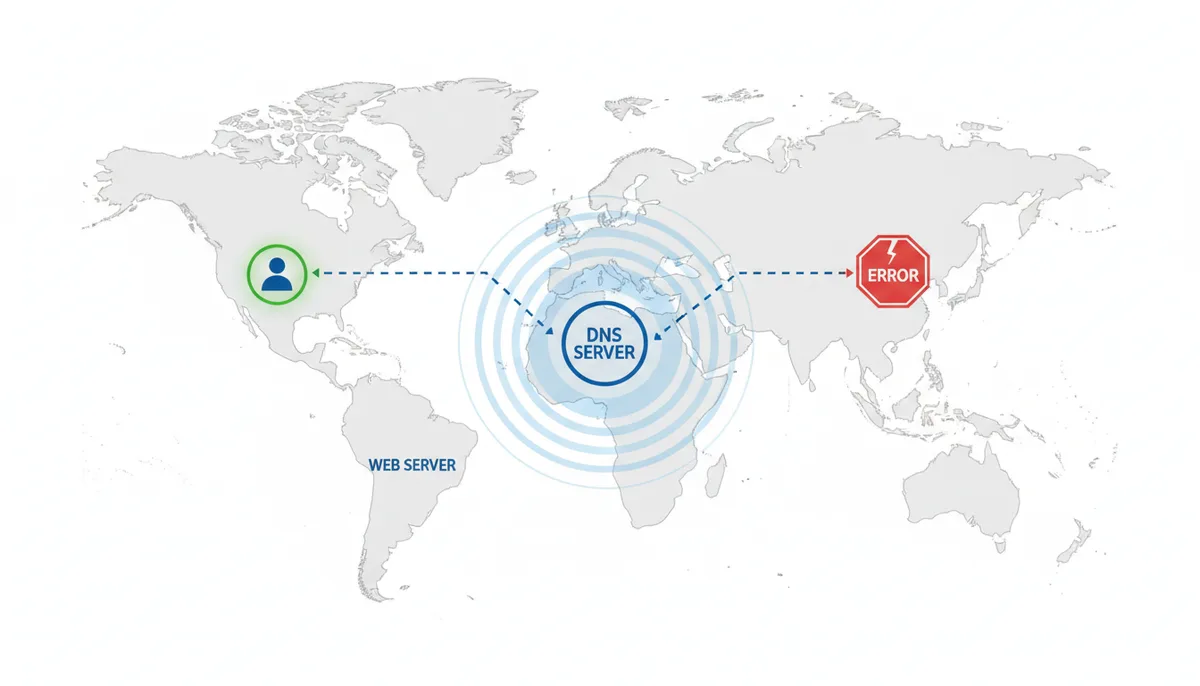
Anycast DNS adds another layer of regional inconsistency. Large DNS providers use the same IP address for thousands of physical servers worldwide. Your query is routed to the nearest one, typically the server with the lowest network latency from your location. If the server in Frankfurt has the updated record but the server in Sydney is lagging behind due to a replication delay or a local caching issue, Australian users will see an outage that German users never notice. The system is designed for speed and redundancy, but during transitions, proximity becomes a liability. Two users sitting in different rooms of the same house might even hit different DNS servers if their devices are configured with different resolvers, leading to one working laptop and one broken tablet.
How Do CDNs and Distributed Servers Create Regional Outages?
A Content Delivery Network, or CDN, is a network of servers—called Points of Presence, or PoPs—spread across cities and continents. These edge servers cache static content like images, videos, CSS files, and JavaScript so that a user in Brazil does not have to wait for a request to travel all the way to an origin server in Finland. When you request a page, DNS usually routes you to the PoP nearest to you. That server either serves the content directly from its cache or fetches it from the origin on your behalf. This works beautifully until your local PoP fails.
Imagine a power cut or a fiber cut at a London datacenter. Users in the United Kingdom and parts of Western Europe who are routed to that specific PoP will see errors, timeouts, or incomplete pages. Users in New York, São Paulo, or Tokyo, who hit their own regional PoPs, will continue browsing without any interruption. The website's origin server is healthy. The database is running. But for one geographic slice of the user base, the site is effectively down because their on-ramp to the highway has collapsed. Global status checkers might even report the site as up if they are testing from a location served by a different PoP.
Not all CDN failures are total blackouts. Sometimes a PoP serves stale or corrupted static assets. The HTML document loads successfully from the origin, but the stylesheet that controls the layout sits cached on a broken edge server. The result is a page that loads but looks shattered—text crammed against the left margin, no colors, images missing, buttons unstyled. Other times, a PoP connects fine to the user but loses its own link back to the origin server. The user gets a cached copy of the homepage but cannot log in, post a comment, or see live inventory data because the dynamic API calls fail in the background. Both scenarios feel like a broken site, yet a simple "is it up" test might return a green status because the raw HTML is technically being served.
A nastier variant is a poisoned cache. A developer ships a broken JavaScript bundle at nine in the morning, notices, and rolls it back twenty minutes later—but the PoP in Amsterdam cached the broken file with a long expiry header, and it will keep serving that file to every visitor routed to it until someone purges the cache or the entry ages out on its own. The telltale clue is that clearing your own browser cache changes nothing, because the broken copy is not on your machine. It sits on a server you have no control over. If a forced refresh fails but the site works when you switch to a VPN exit in another country, you are almost certainly looking at a poisoned edge cache in your region, and the only fix is patience or a report to the site's support team.
The reason these failures stay regional is geo-routing. Large CDNs answer DNS queries for the same hostname with different IP addresses depending on where the query comes from, and many use Anycast, where one IP address is announced from dozens of locations and the network steers you to whichever is nearest. Either way, two people typing the same URL can end up talking to entirely different machines in entirely different datacenters. You can watch this happen: run nslookup for a major domain on your home connection, then run it again through a VPN exit in another country. Different answers are normal. The diagnostic value is that if the site is broken at home but works the moment you change regions, the failure lives in your local edge node or the path to it—not in the site, and not in your device.
Sometimes the edge is healthy and the origin behind it is not. When the edge server cannot reach the origin at all—the origin is down, its firewall is rejecting the CDN, or its TLS certificate expired—the edge cannot fetch anything fresh, and it typically answers with a 502 Bad Gateway or 504 Gateway Timeout. The clue is printed on the error page itself: it is usually branded or stamped by the CDN rather than by the website you were visiting. That branding tells you the request reached the CDN's infrastructure successfully and died on the hop behind it. Your connection is fine. The front door is open; the building behind it is dark.
Websites also defend themselves, and sometimes you are what they defend against. A Web Application Firewall, or WAF, sits in front of the server inspecting requests for attack patterns and enforcing rate limits. If your IP address gets flagged—because someone on your shared office connection scraped the site, because your refresh-happy browser looked like a bot, or because your dynamically assigned home IP was recently used by a spam operation—the WAF starts refusing your requests while serving everyone else normally. The symptom is usually a 403 Forbidden page, an endless CAPTCHA loop, or a connection that resets mid-load. The diagnostic clue is the split: the site fails for every colleague on the office network at once, but loads instantly on any phone using mobile data. Shared public IPs are judged as a unit, and one bad actor can get the whole address blocked. The remedy is a support request asking for the block to be lifted, or waiting for it to expire.
The last server-side failure is the sneakiest because it is intermittent. High-traffic sites run many identical backend servers behind a load balancer, which hands each incoming request to whichever machine looks healthy. Health checks run on an interval, not continuously, so when one backend starts failing—a dead database connection, an exhausted memory pool—there is a window where the load balancer keeps sending it a share of live traffic. If the pool has ten servers and one is sick, roughly one request in ten fails, at random. The clue is the pattern, or rather the lack of one: refresh five times and you get three clean loads and two 500 errors, and nothing you do changes the odds. From your chair it looks like a flaky connection. It is actually a coin flip happening on the other end, and it resolves itself the moment the next health check pulls the sick server out of rotation.
Every one of these failures—a dead PoP, a poisoned cache, a WAF with your address on its list, a dying backend server—produces the same thing on your screen: a site that refuses to load while other people insist it works fine. Telling them apart from your desk requires testing methodically, starting from the outside and working inward.
Can a Website's Own Server Intentionally Block You?
Sometimes you cannot reach a site because the site, or its guardians, has decided you should not. Geoblocking is the most common example. Streaming services enforce content licensing agreements by checking the country associated with your IP address against a geoIP database. News sites have been known to block European visitors rather than comply with data privacy regulations. E-commerce platforms restrict sales to certain regions to manage tax obligations. If your IP address geolocates to a blocked region, the server will refuse the connection or serve a polite denial page. To you, it looks like an outage. To a user in an approved region, it is business as usual. These blocks are not personal; they are automated based on data that is sometimes wrong. A user in New York might get blocked because their IP block was formerly allocated to a restricted country.
A Web Application Firewall, or WAF, can lock you out by accident. These systems sit in front of the web server and inspect incoming traffic for signs of attacks like SQL injection or cross-site scripting. They also enforce rate limits. If your IP address has been flagged—perhaps because someone else on your corporate network was scraping the site, or because your dynamic IP address was recently used by a malicious actor—the WAF will drop your packets silently or serve a challenge page you cannot satisfy. The site is not down. Your specific front door is barred. This is especially common in office environments where fifty employees share a single public IP address. One person runs a script or refreshes too aggressively, and now the firewall treats everyone behind that address as hostile. The remedy is usually to contact the website's support team and request that your IP range be unblocked.
Load balancers distribute traffic across multiple backend servers to prevent any single machine from collapsing under demand. If one server in the pool develops a fault—say, its database connection breaks, or it runs out of memory—the load balancer should detect this and stop sending users to it. Health checks take time, though, and they are not always instantaneous. During the gap between failure and detection, a fraction of users get randomly assigned to the broken machine. They see 500 errors or timeouts. Everyone else lands on healthy servers and shops, reads, or watches without issue. The outage is real, but it affects a random subset of users refreshing at the wrong moment. If you retry a few times and the error flips between success and failure, you are likely bouncing between healthy and sick backend servers.
How Can You Systematically Diagnose Where the Failure Is?
Troubleshooting is only frustrating when you do it randomly. Work through the chain methodically. Start broad and get narrower. The first move is the most important: use a global status checker to see whether the site is down for everyone or just you. If the checker reports the site is up, you have immediately isolated the problem to your connection. Do not skip this step. Guessing wastes time and leads you to reinstall browsers or reboot routers when the issue is a CDN node three thousand miles away.
Next, open an incognito or private browsing window and try the site again. This bypasses your cache, cookies, and extensions in one move. If it works, you know the problem is local to your browser profile. If it still fails, try a different device connected to the same network. A tablet on the same Wi‑Fi network will tell you whether the issue is specific to your laptop. If both devices fail, the router, DNS, or ISP is suspect. Now switch your phone to mobile data, completely off the local network. If the site loads on LTE or 5G, you have isolated the problem to your home or office internet connection. It could be the router's DNS, an ISP routing issue, or an ISP-level block. At this point, you know exactly where to focus your energy.
For the final layer, use command-line tools to pinpoint the break. Ping tests basic reachability. Open Command Prompt or Terminal and type ping followed by the domain. If you get steady replies with reasonable milliseconds, the target host is alive and the base network path exists. If ping succeeds but the website still will not load in a browser, the problem sits higher up—likely in the HTTP, SSL, or application layer, not in raw connectivity. Be aware that some firewalls block ICMP echo requests while still serving HTTP traffic, so a failed ping is not conclusive proof of an outage. Conversely, a successful ping does not mean the web server software is running; it only means the machine is powered on.
Traceroute on Windows, or traceroute on macOS and Linux, maps every hop your packets take. The output shows a numbered list of routers, with response times for each. Look for a wall of asterisks or timeouts starting at a specific hop and continuing to the end. If the failure happens at hop two or three, the problem is almost certainly inside your local network or your ISP. If the trace routes cleanly through fifteen hops and only fails at the final destination, the target server or its immediate upstream firewall is likely rejecting you. Some routers in the middle of the path deprioritize ICMP traffic, so a timeout at a middle hop is not always an outage. What matters is where the timeouts begin and whether they continue to the end.
Nslookup or dig queries DNS directly and shows you which IP address your system is using for the domain. Run nslookup example.com to see what your default resolver returns. Then run nslookup example.com 1.1.1.1 to ask Cloudflare's resolver the same question. If your default resolver returns a different IP address than the public resolver, or if it returns an NXDOMAIN error while the public resolver succeeds, you are dealing with stale DNS, propagation delay, or an ISP-level block. You have found your culprit, and you know whether to flush your cache, change your DNS settings, or wait.
| Step | Action | What It Tells You |
|---|---|---|
| 1 | Use a global checker such as IsDownAlarm | Whether the site is down for everyone or only your connection |
| 2 | Open the site in an incognito or private browser window | If it works, your cache, cookies, or an extension is breaking the site |
| 3 | Try loading the site on a different device using the same Wi‑Fi network | If it fails on multiple devices, your router, DNS settings, or ISP are likely the cause |
| 4 | Switch to mobile data or connect to a different Wi‑Fi network | If it works on mobile data, your home or office ISP or router configuration is at fault |
| 5 | Run traceroute or tracert to the domain | The last responding hop reveals whether the failure is inside your local network, inside your ISP, or at the destination |
| 6 | Run nslookup or dig against a public DNS resolver like 1.1.1.1 | Whether your default DNS resolver is serving stale, incorrect, or blocked records compared with a public resolver |
Frequently Asked Questions
Why does a website work on my phone's data but not my home Wi-Fi?
This single comparison tells you almost everything you need to know. Your phone's cellular data uses a completely different network path—different DNS resolvers, different ISP infrastructure, different routing through the internet backbone, and often a different IP geolocation. If the site works on mobile data but fails on your home Wi-Fi, you have eliminated the website itself, your device model, and your broad geographic region as causes. The problem lives inside your local network or your home ISP. Check your router's DNS settings, perform a full power cycle, or test whether your ISP is experiencing a routing issue or DNS outage. The answer is almost always there.
Can using a VPN fix this problem?
Yes, and it is an excellent diagnostic tool. A VPN tunnels your traffic out through a server in another city or country, giving you a different IP address, different DNS resolution, and a different route across the internet. If you turn on a VPN and the site loads instantly, you have proven that the site itself is available and that your specific location, ISP routing, or IP reputation was the barrier. I do not recommend leaving a VPN on permanently unless you need it for privacy, but for ten minutes of troubleshooting, it can tell you whether to call your ISP or clear your cache. If a VPN works, the issue is not your device. It is your path.
What's the difference between ping and traceroute?
Ping is a blunt instrument. It sends a small packet to the target server and waits for an echo. It answers one question: is this host reachable, and how long does it take to respond? Traceroute is a map. It sends packets with carefully set time limits, forcing each router along the path to announce itself. The output shows you every stop your data makes, from your router to the destination. If your connection dies halfway across the country, traceroute shows you the exact city or network where the trail goes cold. Use ping to confirm a server is alive. Use traceroute to find where the road is blocked. Neither tells you if the website application is healthy, but both tell you if the network path is intact.
My browser says 'DNS_PROBE_FINISHED_NXDOMAIN'. What does that mean?
Your browser is telling you that the domain name you typed does not exist, according to the DNS resolver you are using. NXDOMAIN stands for Non-Existent Domain. This usually means one of three things. First, you might have mistyped the URL. Second, the site might actually be gone or the domain might have expired. Third, and most common in these scenarios, your DNS resolver is either down, unreachable, or holding a cached denial. Try flushing your OS DNS cache and then querying the domain against a public resolver like 1.1.1.1 using nslookup. If the public resolver finds the domain but your default resolver does not, your ISP's DNS or your local cache is the culprit.
How long does a 'DNS propagation' issue usually last?
It ranges from a few minutes to forty-eight hours. The exact duration depends on the Time To Live value set on the old DNS record before the change was made. If the previous TTL was 300 seconds, most of the internet will catch on within five minutes. If it was 86,400 seconds, recursive resolvers are technically allowed to cache the old address for a full day. In practice, many popular public resolvers update faster than the strict TTL, but you should not count on it. If you are a website owner planning a migration, lower your TTL to 300 at least twenty-four hours in advance. If you are a user stuck waiting, switching to a public DNS resolver sometimes finds the updated record sooner than your ISP will.
Does 'Incognito Mode' help diagnose these problems?
Yes, and it is the fastest test you can run. Incognito, or private browsing, loads the site without consulting your accumulated cache, without sending stored cookies, and usually without enabling your browser extensions. If the site works in incognito but fails in your normal window, you have narrowed the cause to one of those three areas. Start by clearing your cache and cookies for the specific domain. If that does not help, disable your extensions systematically. I run this test before I do anything else because it takes five seconds and saves twenty minutes of blaming the router. If incognito fails too, you know the problem is outside the browser entirely.
Sources
- Cloudflare Learning Center — Authoritative explanations for core concepts like DNS, CDN, BGP, Anycast, and what a firewall does.
- Internet Engineering Task Force (IETF) — The ultimate source for the technical standards that define protocols like DNS (RFC 1034/1035), HTTP (RFC 9112), and BGP (RFC 4271).
- Google Public DNS — Specific instructions and addresses (8.8.8.8) for using a major public DNS service, backing claims about it as a diagnostic tool.
- MDN Web Docs — Canonical definitions of HTTP status codes, explaining what errors like 403 Forbidden or 503 Service Unavailable mean from the server's perspective.
- Akamai — Industry leader's explanation of how CDNs and edge computing work in practice, supporting claims about regional outages and PoPs.